
Screens shown with a fictional demo practice and AI-generated model photos.
-
Step 1: Ask the patient for their code
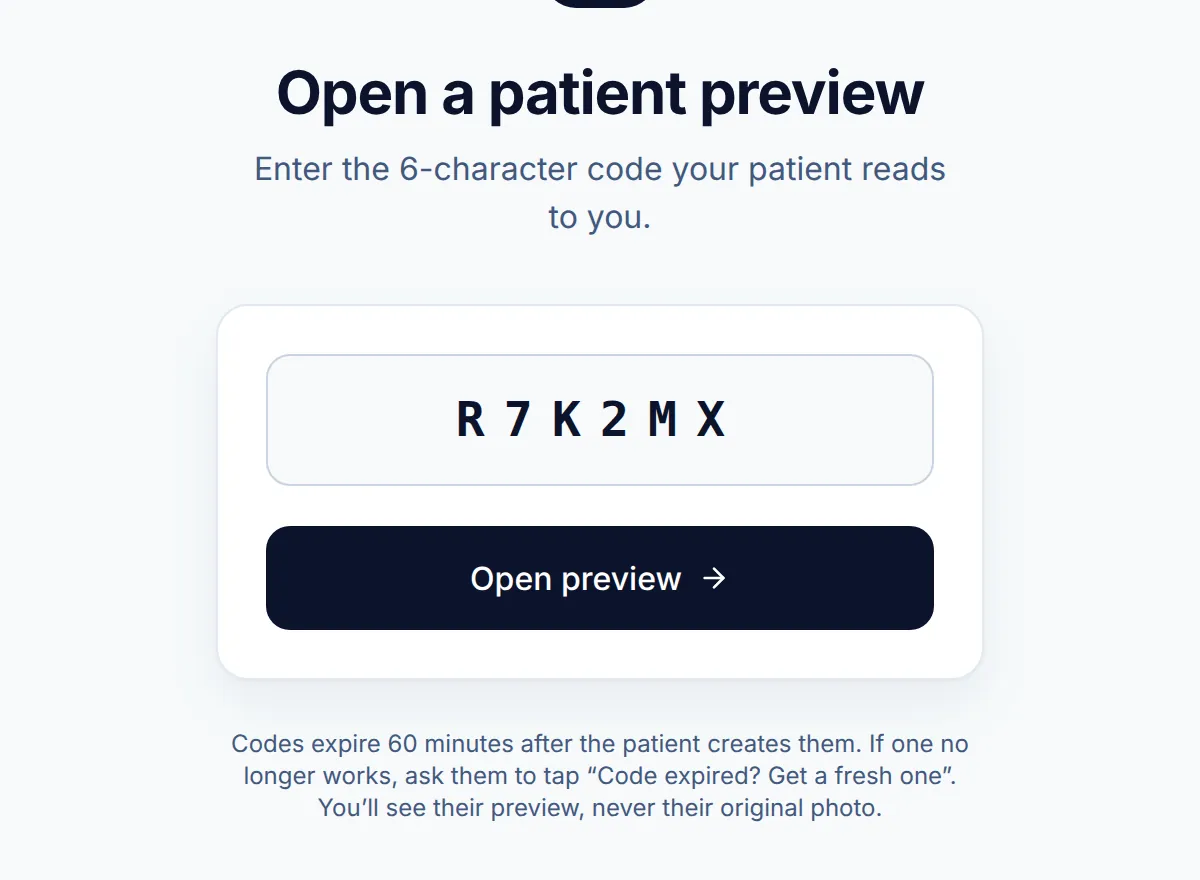
After a preview, the patient’s results page shows a card called Seeing your dentist? Show them with a six-character code. Ask them to read it to you.
-
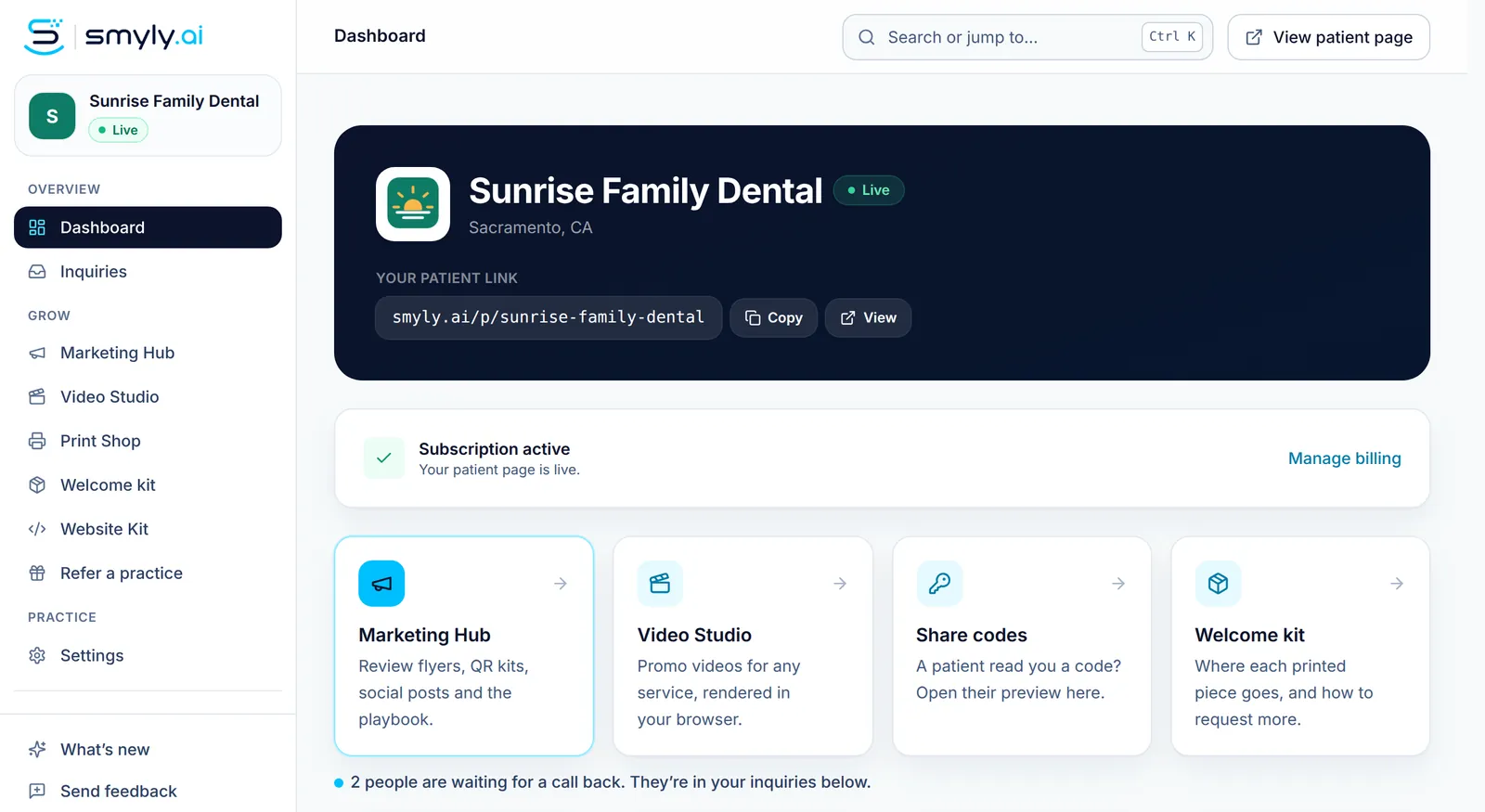
Step 2: Open Share codes
On your Dashboard, click the Share codes tile, or go straight to smyly.ai/code on any office computer.
-
Step 3: Type the code
-
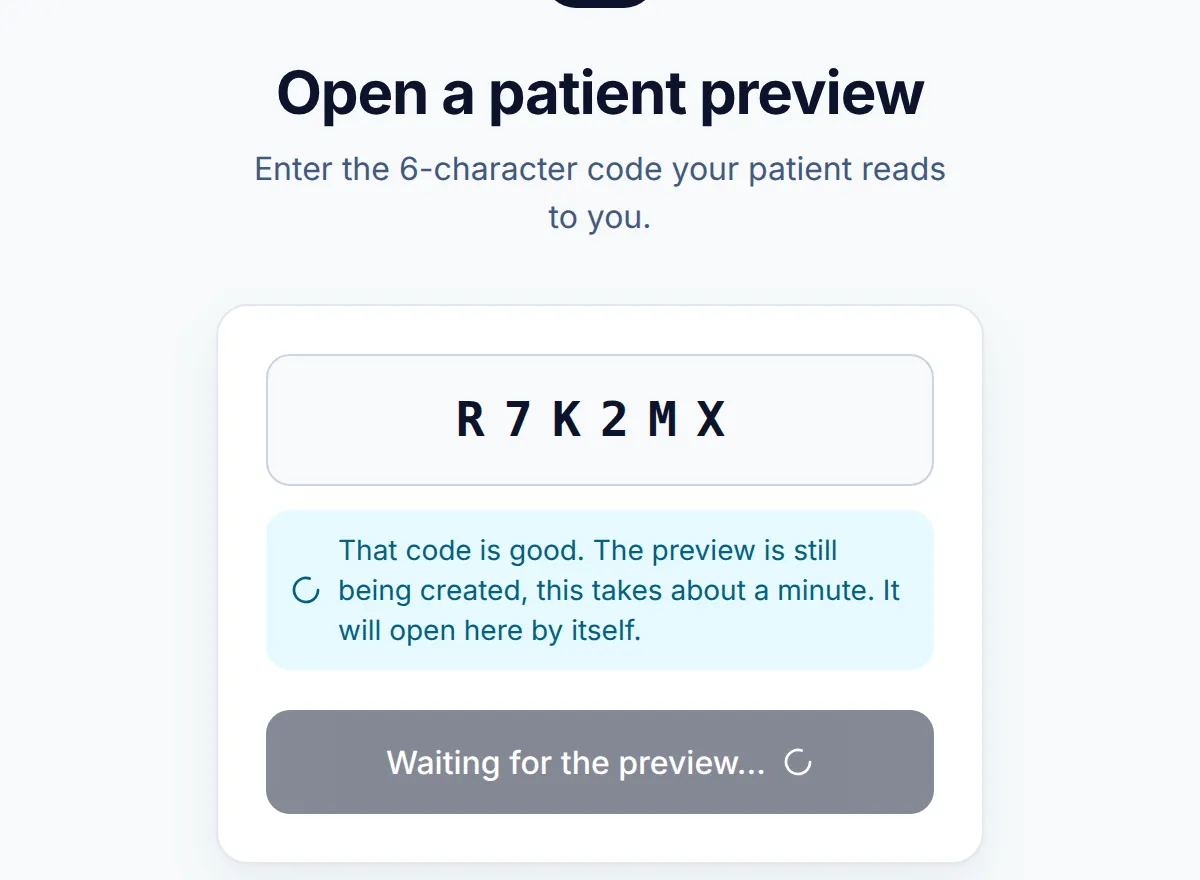
Step 4: If it is still being created, wait
-
Step 5: Review the preview together
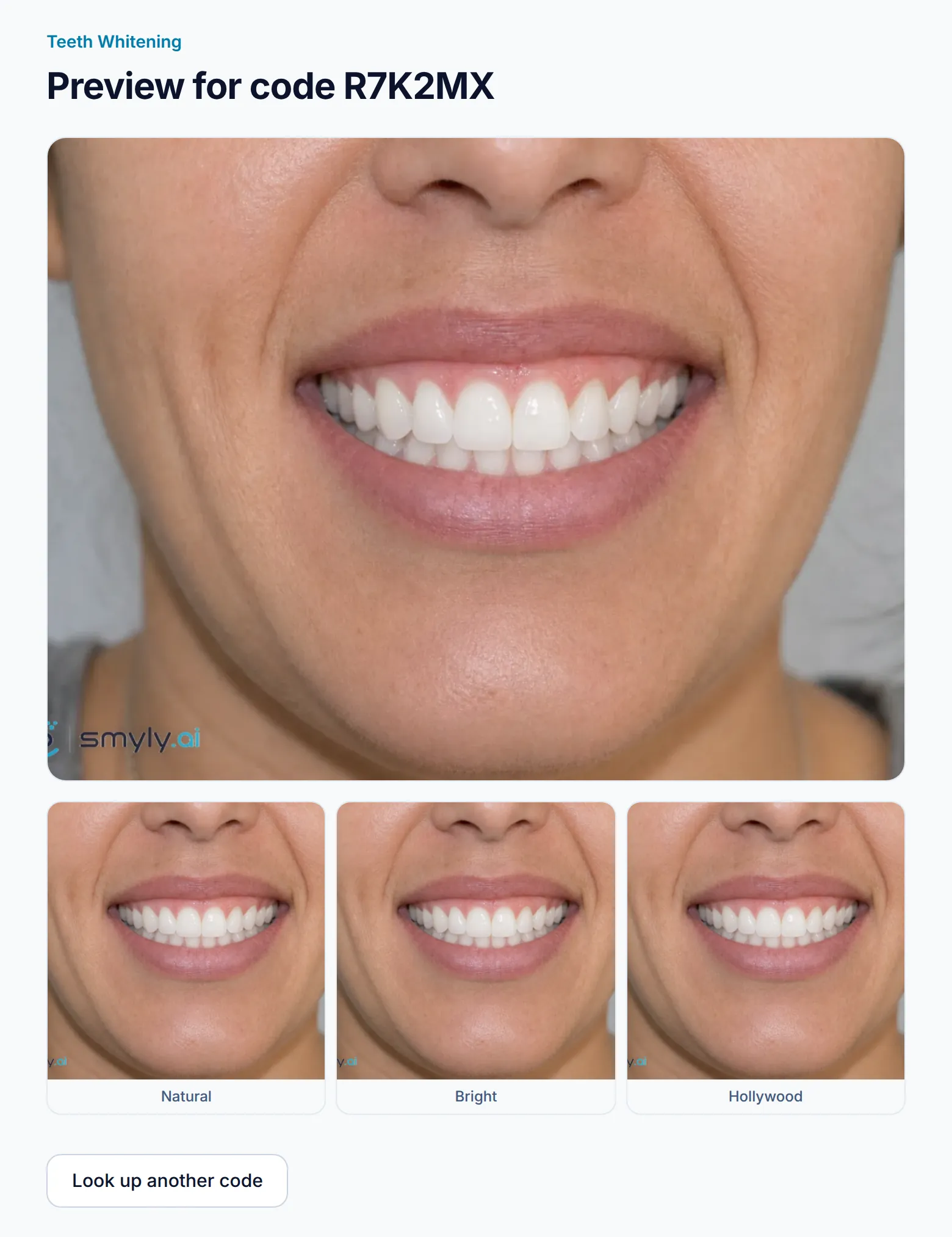
The page shows Preview for code with the treatment name, the preview, and each option the patient saw. You see the preview, never the patient’s original photo. When you are done, click Look up another code.
-
Step 6: If the code has expired
Codes expire 60 minutes after the patient creates them. Ask the patient to tap Code expired? Get a fresh one on their results page: it makes a new code for the same preview, with no new photo. Previews themselves last 24 hours.
Good to know
- “Code not found or expired” can also be a misheard character. Codes never use the letters I, L, O or S or the digits 0 and 1, so an “O” is a letter the patient should re-read.
Related guides
-
Run your first chairside preview
Walk a patient through a preview on their own phone: scan, consent, pick a treatment, take a photo, and share the result with you.
8 steps · 6 min · 8 screens Read
-
Follow up on patient inquiries
Find the patients who asked you to contact them, move each one from New to Booked, and export the list for your own system.
6 steps · 5 min · 4 screens Read
-
Find anything fast
Get around the practice app with the sidebar and Cmd or Ctrl K, catch up on What’s new, and send the team feedback.
4 steps · 3 min · 4 screens Read
New to Smyly? See it on your own practice.
Start a 7-day free trial: your branded patient page is live the same day. A card is required at checkout and nothing is charged for 7 days.
Ready to try it?
Everything in this guide is one click from your dashboard. Stuck on a step? Use Send feedback in the app, or email [email protected].
Open your dashboardSomething here doesn’t match what you see? Email [email protected] and we’ll fix the guide.