
Screens shown with a fictional demo practice and AI-generated model photos.
-
Step 1: How an inquiry arrives
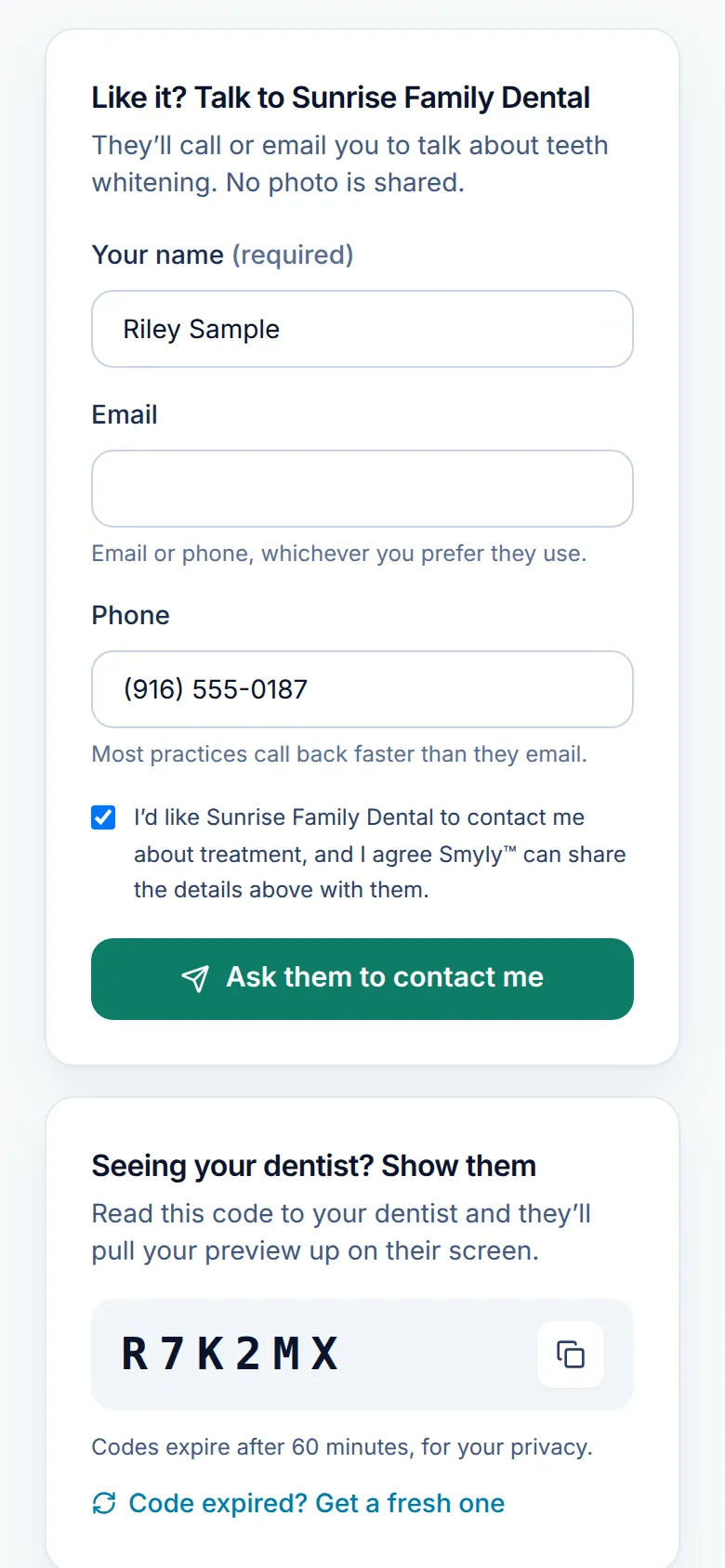
On their results page, a patient who likes the preview fills in Like it? Talk to your practice: Your name, an email or phone, and a box agreeing to be contacted. When they tap Ask them to contact me, you get their name, contact details and the treatment they explored. You never receive their photo.
-
Step 2: Open Inquiries
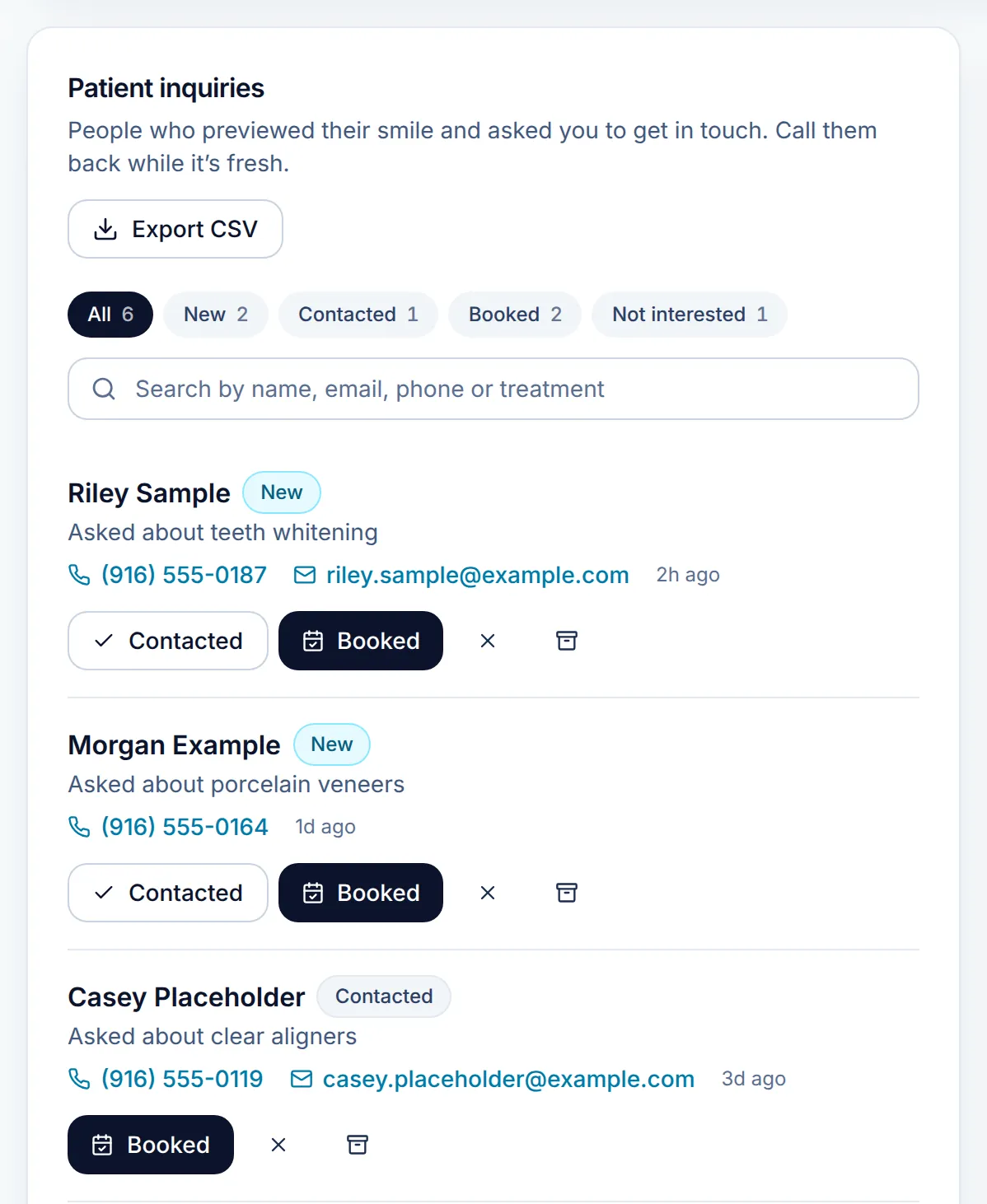
Click Inquiries in the sidebar. It jumps to Patient inquiries on your dashboard. Each inquiry shows the name, its status, what they asked about, tap-to-call and email links, and how long ago it arrived.
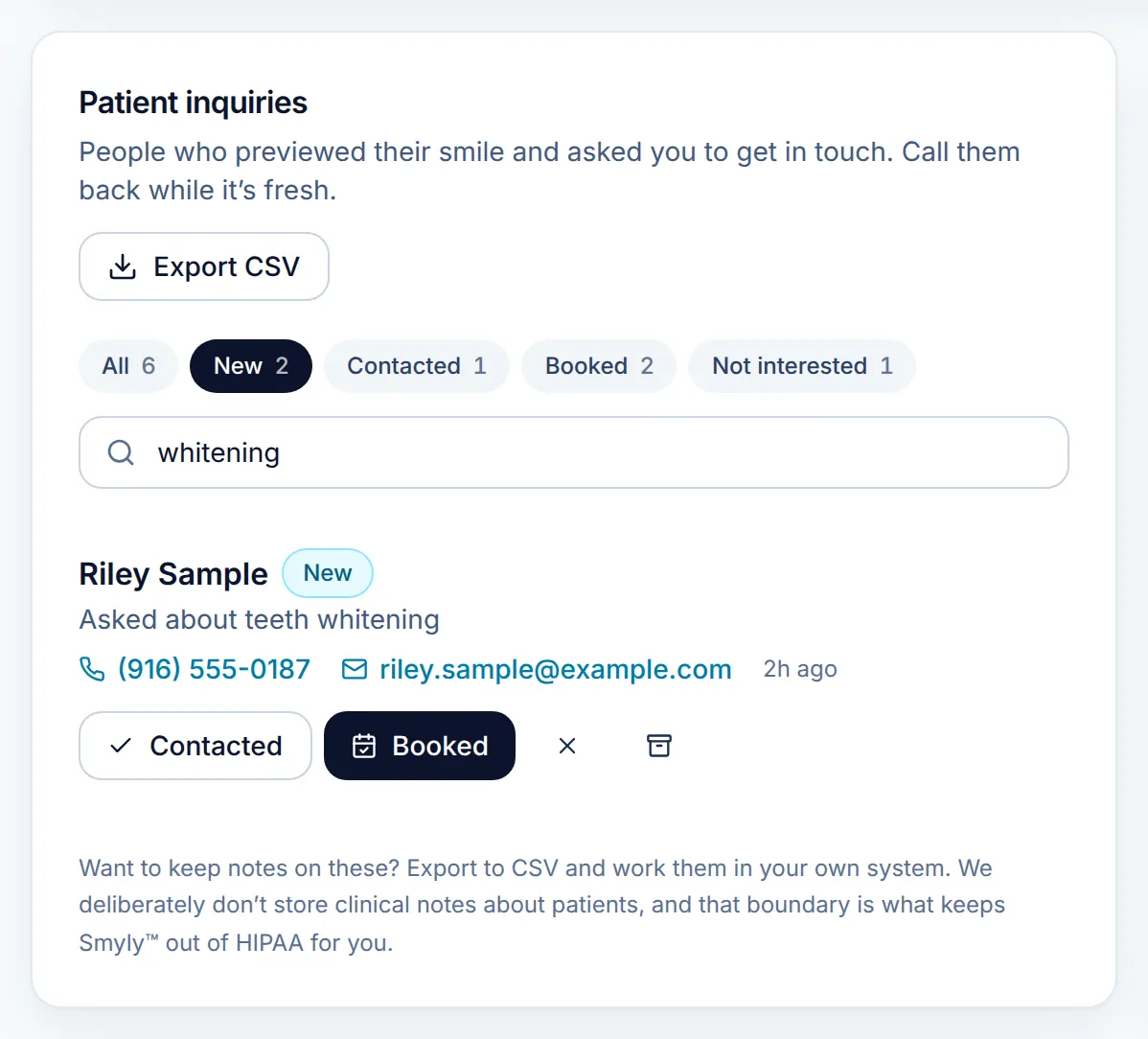
The status filters show how many are in each stage, the search box narrows the list, and Export CSV downloads it. On a new inquiry, click the Contacted button once you have reached out.
-
Step 3: Move each inquiry along
- Contacted marks a new inquiry as reached.
- Booked marks an appointment made.
- The X button marks them not interested.
- The archive button hides an inquiry from All. Open the Archived filter and click Restore to bring one back as New.
A short confirmation appears each time, for example “Riley Sample marked as contacted.”
-
Step 4: Filter and search
-
Step 5: Export to your own system
Export CSV downloads the inquiries currently on screen (your filter and search apply) with name, email, phone, what they were interested in, status and when it arrived.
There is no notes field on purpose. Keeping clinical notes out of Smyly keeps it outside HIPAA for you, so keep notes in your practice software.
-
Step 6: Choose who gets alerts
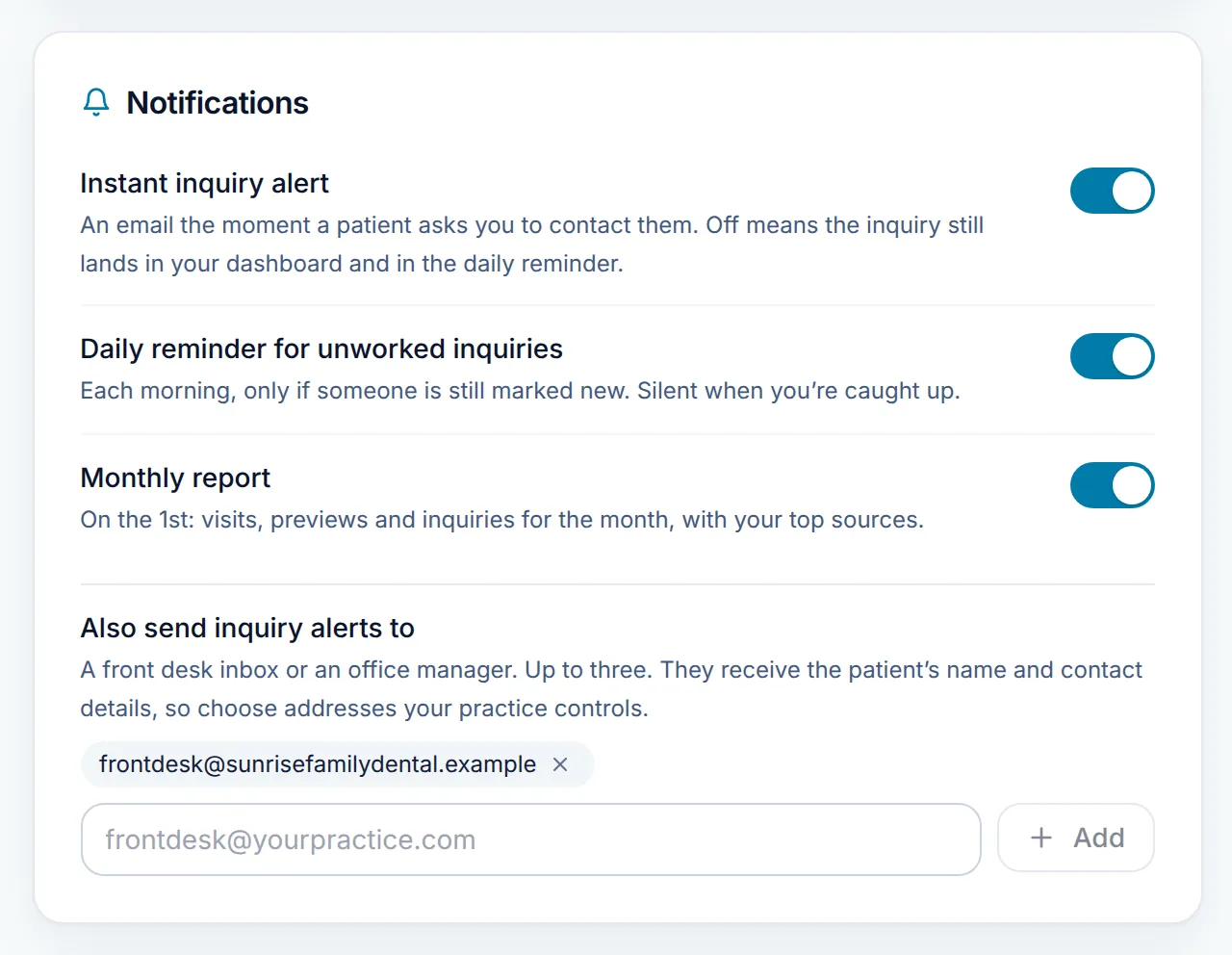
In Settings, Notifications, the Instant inquiry alert emails you the moment someone asks to be contacted, and the Daily reminder for unworked inquiries arrives each morning only while someone is still marked New.
Under Also send inquiry alerts to, add up to three more addresses, such as a front desk inbox. Use addresses your practice controls, because alerts include the patient’s contact details.
Good to know
- Call while it is fresh. A same-hour reply is worth several next-day ones.
- Front desk teammates can work the inquiry list too. See Add your front desk and associates.
Related guides
-
Add your front desk and associates
Give teammates their own sign-in, choose Front desk or Admin, and manage invites and seats.
5 steps · 4 min · 3 screens Read
-
Manage billing and notifications
Update your card or download invoices through Stripe, choose your email alerts, and move from the trial to your subscription.
5 steps · 4 min · 4 screens Read
-
Run your first chairside preview
Walk a patient through a preview on their own phone: scan, consent, pick a treatment, take a photo, and share the result with you.
8 steps · 6 min · 8 screens Read
New to Smyly? See it on your own practice.
Start a 7-day free trial: your branded patient page is live the same day. A card is required at checkout and nothing is charged for 7 days.
Ready to try it?
Everything in this guide is one click from your dashboard. Stuck on a step? Use Send feedback in the app, or email [email protected].
Open your dashboardSomething here doesn’t match what you see? Email [email protected] and we’ll fix the guide.