
What you’ll need
- Owner or admin access. Admins can add Front desk teammates; only the owner can add Admins.
Screens shown with a fictional demo practice and AI-generated model photos.
-
Step 1: Open Your team
In Settings, scroll to Your team. It lists everyone who can sign in to your practice and any pending invites.
-
Step 2: Invite a teammate by email
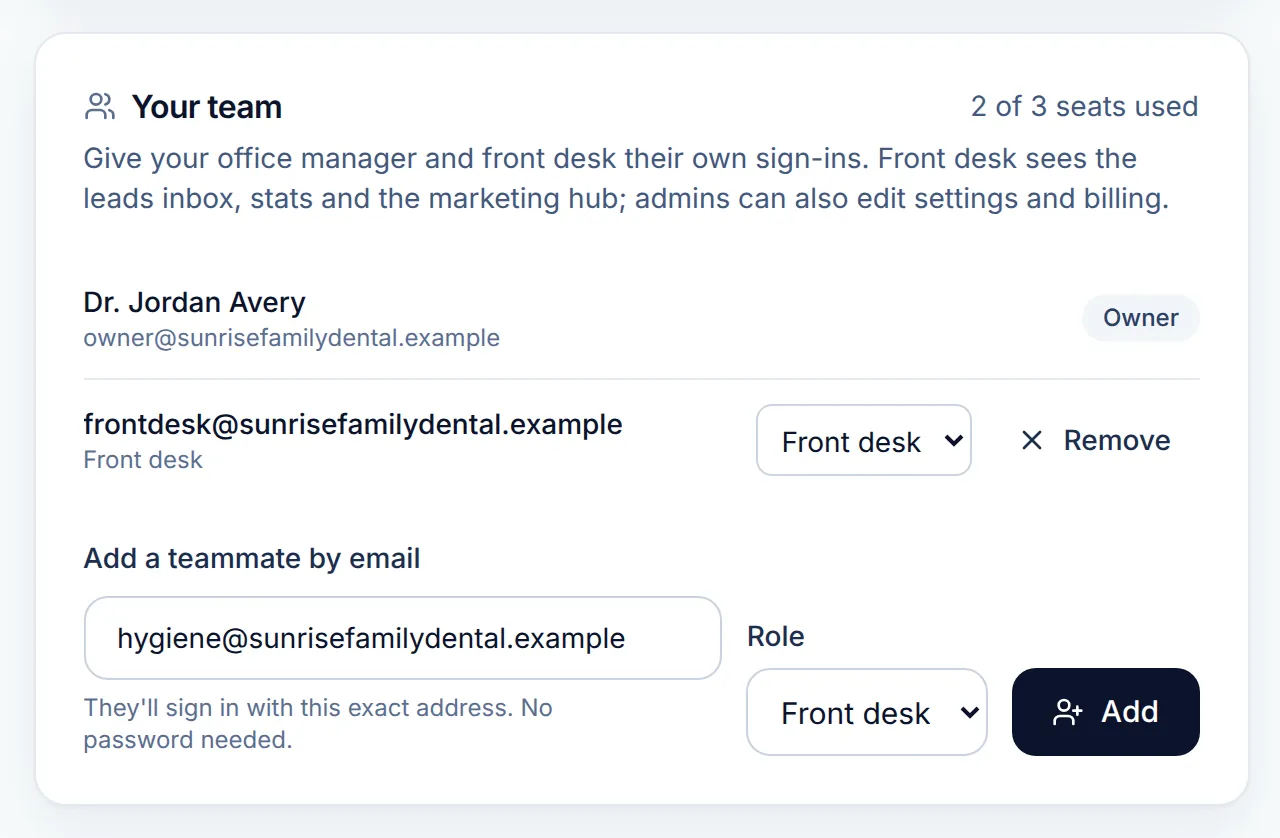
The seats used count at the top includes you. Type their address in Add a teammate by email, pick a Role (Front desk or Admin) and click Add.
They get an email and sign in with that exact address. There is no password to set.
-
Step 3: Resend or revoke an invite
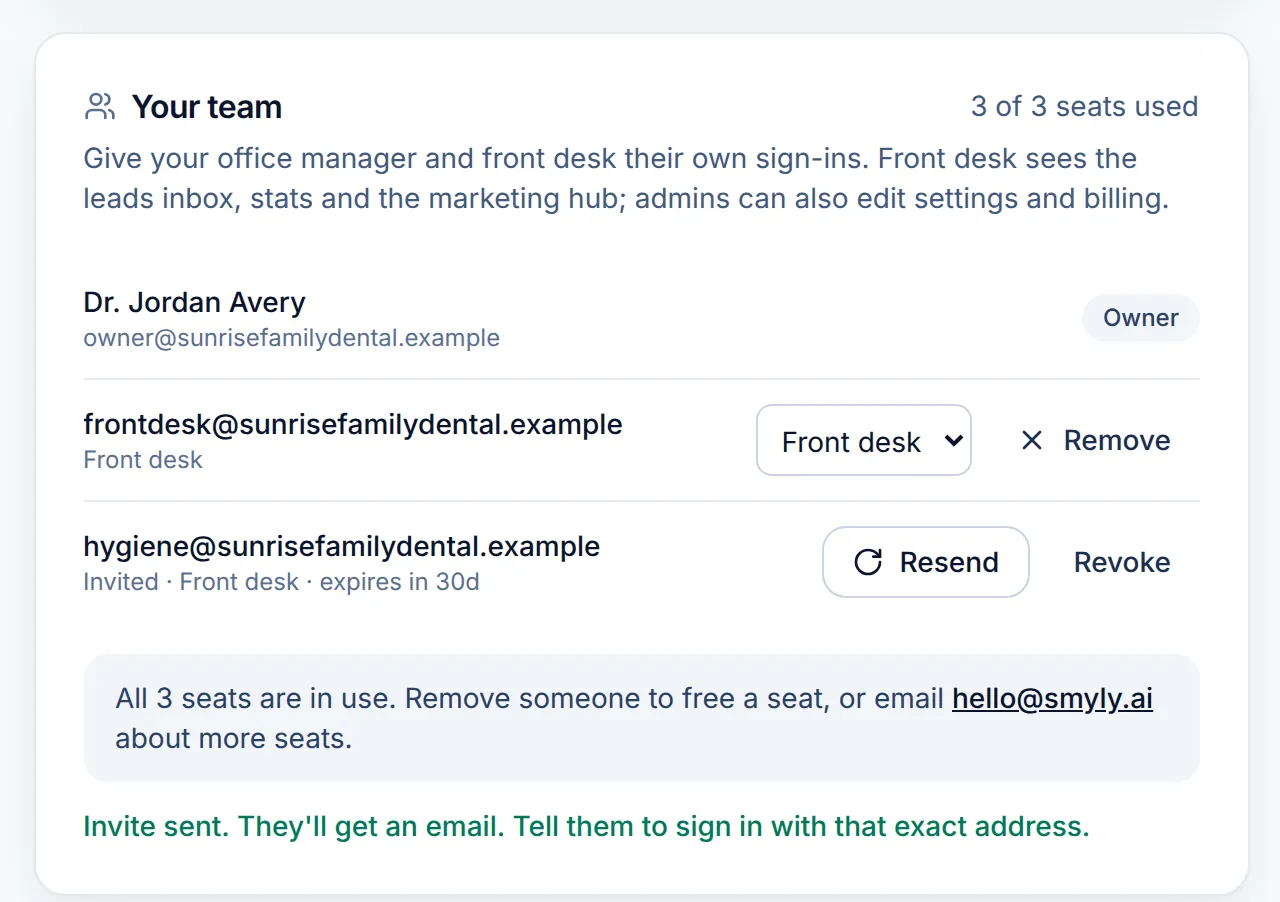
A pending invite shows who it went to, the role and when it expires (30 days). Click Resend if the email went astray, or Revoke, then confirm, to cancel it.
A pending invite holds a seat. When every seat is taken, the form is replaced by All 3 seats are in use; remove someone or email [email protected] about more seats.
-
Step 4: Change a role or remove someone
The owner can switch a teammate between Front desk and Admin with the menu beside their name. Remove asks “Remove?” to confirm. Admins manage Front desk teammates only, and ownership moves through Smyly (email [email protected]).
-
Step 5: Know what each role can do
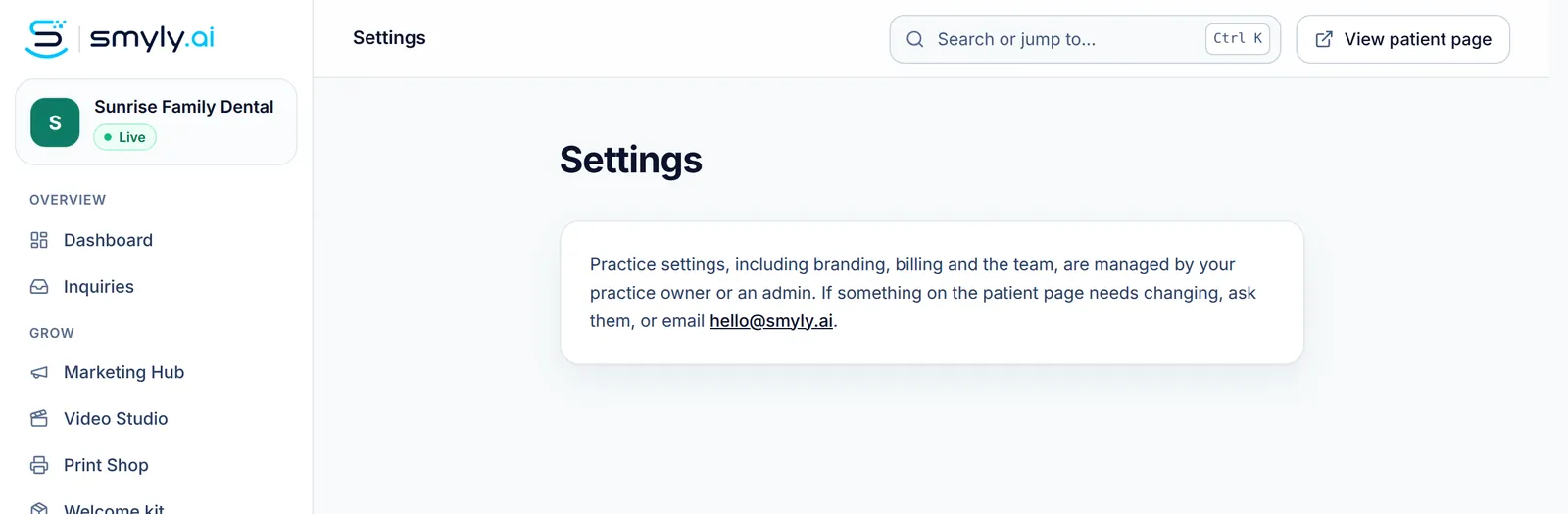
Front desk teammates use the dashboard, the inquiry list, share codes and the Marketing Hub. Settings, branding, billing and the team are for the owner and admins: a front desk teammate who opens Settings sees that they are managed by your practice owner or an admin.
Related guides
-
Manage billing and notifications
Update your card or download invoices through Stripe, choose your email alerts, and move from the trial to your subscription.
5 steps · 4 min · 4 screens Read
-
Follow up on patient inquiries
Find the patients who asked you to contact them, move each one from New to Booked, and export the list for your own system.
6 steps · 5 min · 4 screens Read
-
Brand your team’s email signature
Build a signature with your logo, booking button and legal footer in four steps, paste it into your mail app, and share the design with your team.
5 steps · 6 min · 4 screens Read
New to Smyly? See it on your own practice.
Start a 7-day free trial: your branded patient page is live the same day. A card is required at checkout and nothing is charged for 7 days.
Ready to try it?
Everything in this guide is one click from your dashboard. Stuck on a step? Use Send feedback in the app, or email [email protected].
Open your dashboardSomething here doesn’t match what you see? Email [email protected] and we’ll fix the guide.