
Screens shown with a fictional demo practice and AI-generated model photos.
-
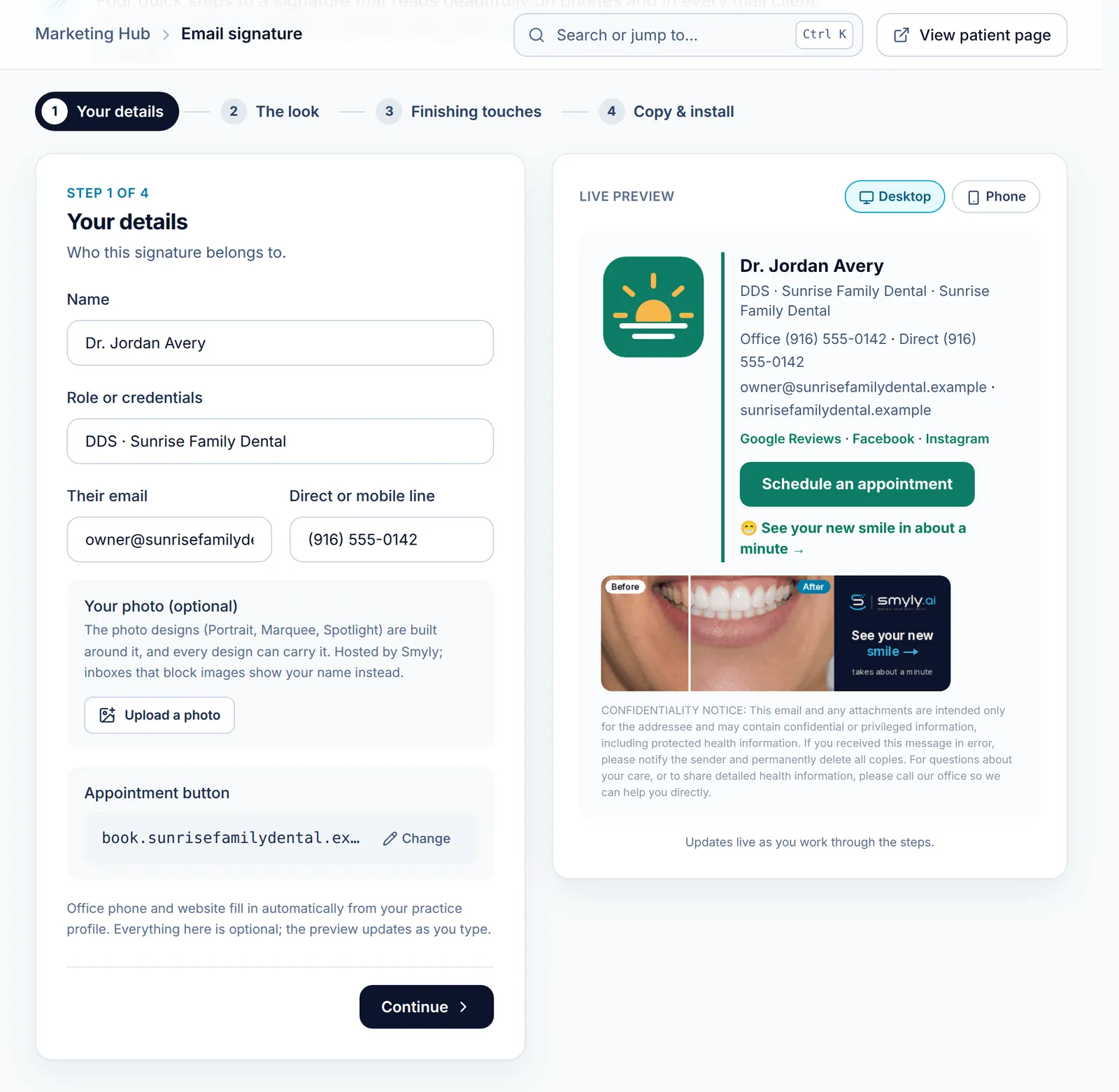
Step 1: Add your details
In the Marketing Hub, open Email Signature. In step 1, type your Name, role, email and direct line, and add a photo if you like. The Appointment button uses your online scheduling link; set it once and it appears in everyone’s signature.
The Live preview on the right updates as you type. Your office phone and website fill in from your practice profile. Click Continue.
-
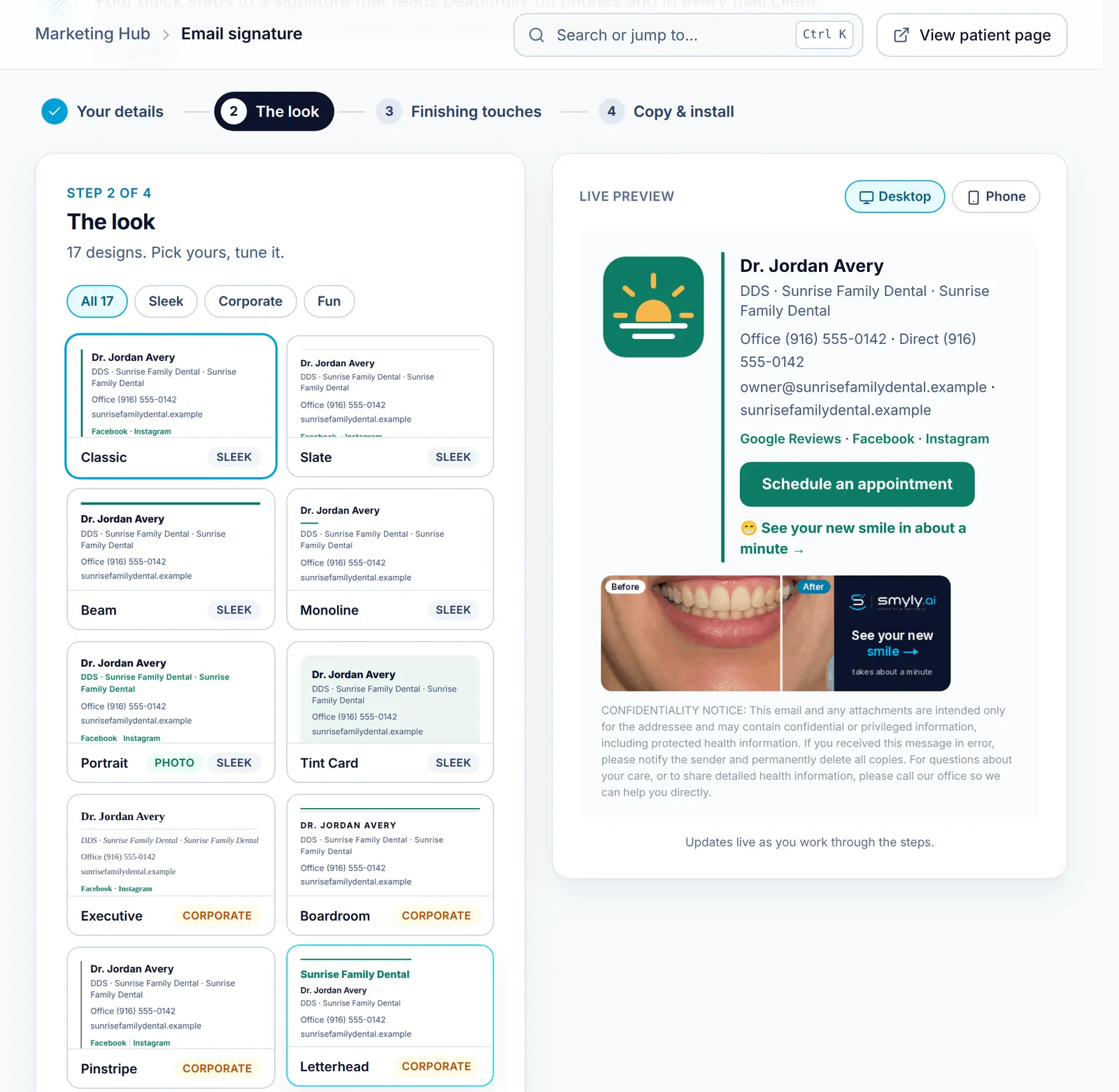
Step 2: Pick the look
In step 2, narrow the designs with the style filters (Sleek, Corporate, Fun) and click a design; Classic is selected to start. Tick Include your logo and choose Side, Top or Bottom placement, further down the panel. The Accent color sets the small touches; your brand color stays the main color.
-
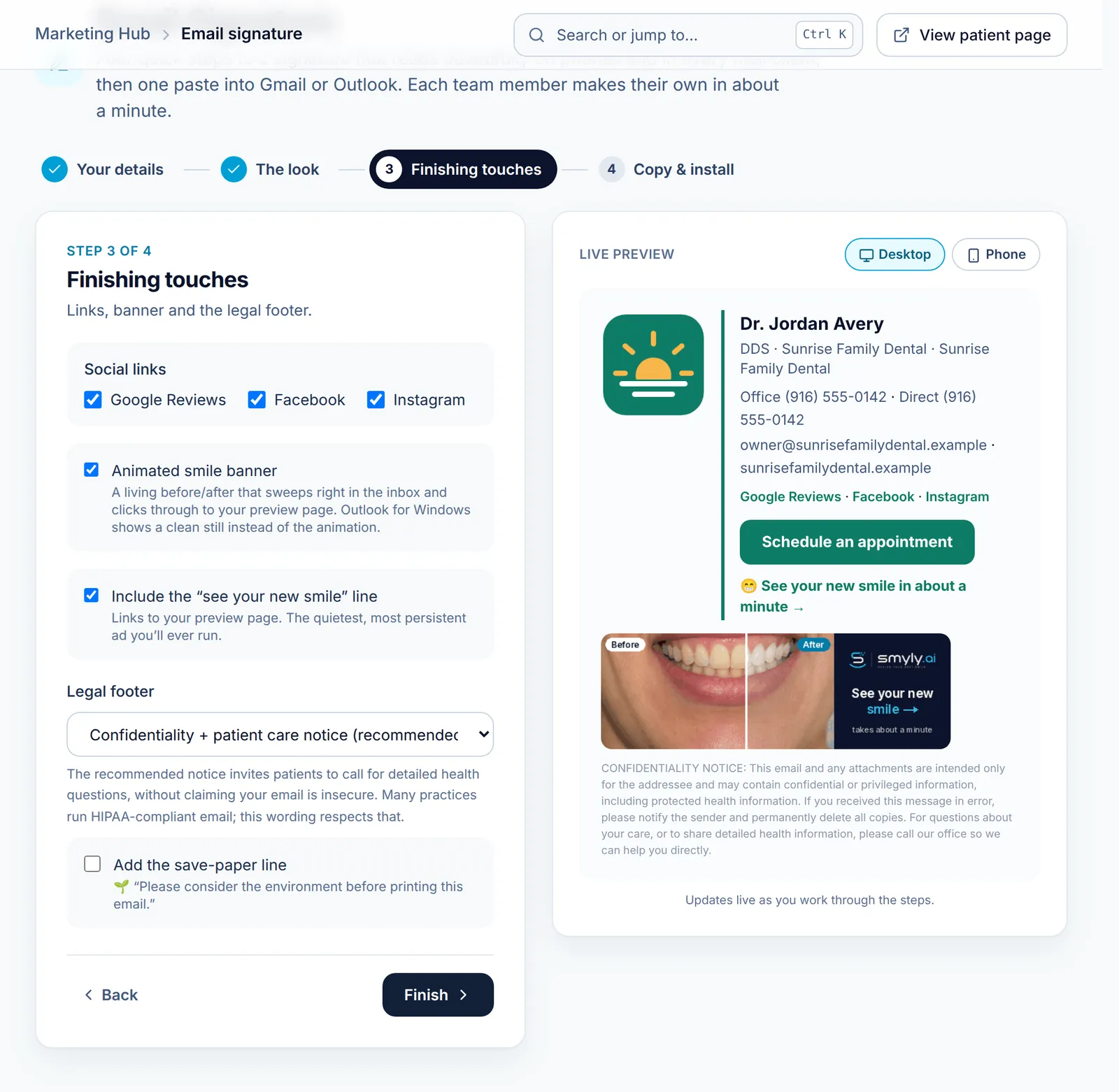
Step 3: Add the finishing touches
In step 3, choose which social links to show, and whether to include the Animated smile banner (a before and after that links to your preview page) and the “see your new smile” line. Pick a Legal footer; the recommended option invites patients to call for detailed health questions. Then click Finish.
-
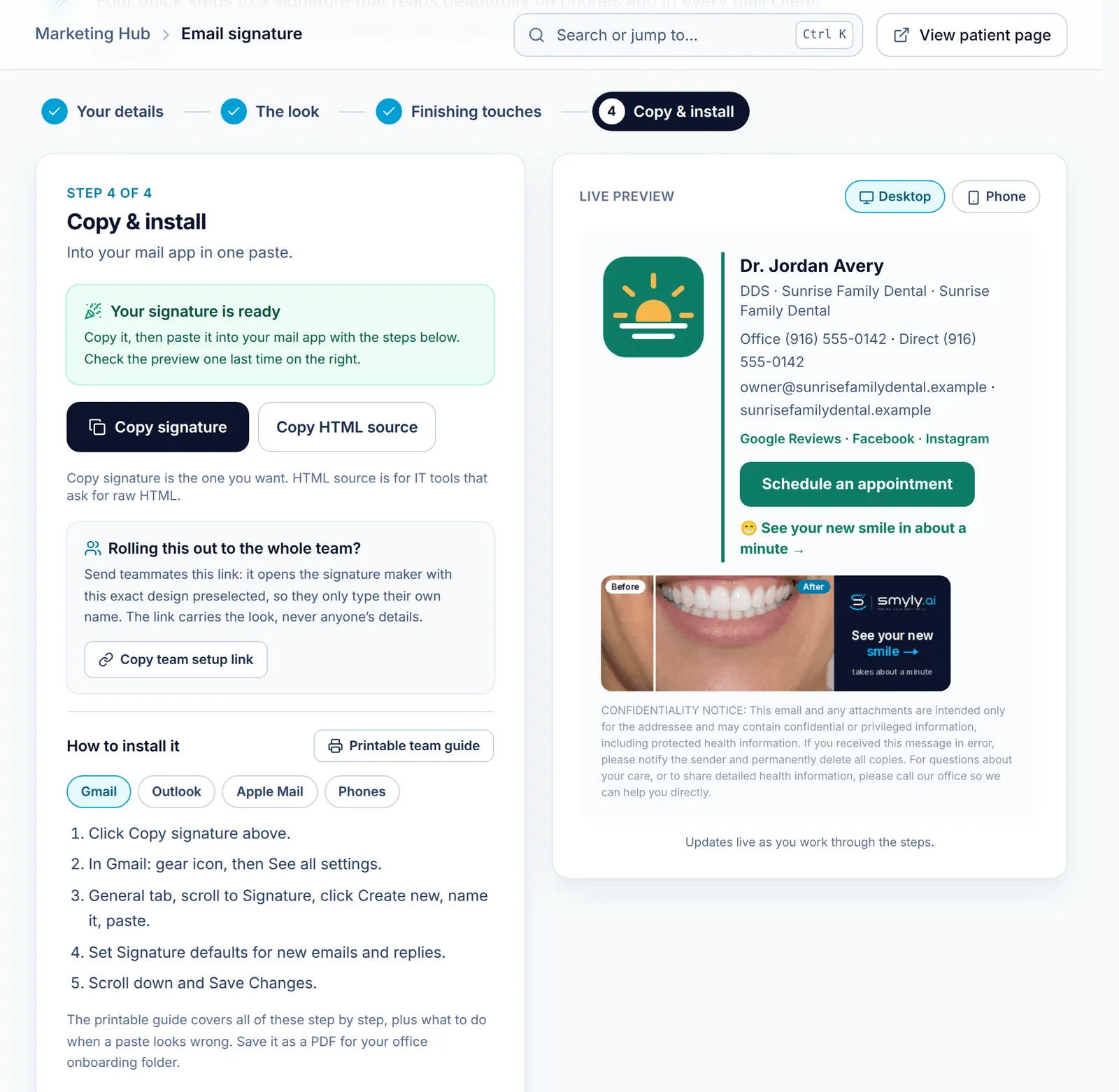
Step 4: Copy it into your mail app
Click Copy signature, then follow the steps for your mail client in the mail client tabs (Gmail, Outlook, Apple Mail and Phones). In Gmail: the gear icon, See all settings, the General tab, Signature, Create new, paste, and Save Changes. Copy HTML source is only for IT tools that ask for raw HTML.
To give the whole team the same design, click Copy team setup link and send it round.
-
Step 5: Roll it out to the team
The team setup link opens the signature maker with your design already chosen, so each teammate only types their own name and details. The link carries the look, never anyone’s details. Printable team guide gives your office a one-page install sheet.
Related guides
-
Add your front desk and associates
Give teammates their own sign-in, choose Front desk or Admin, and manage invites and seats.
5 steps · 4 min · 3 screens Read
-
Ask for Google reviews the compliant way
Print Google review flyers and counter cards from your own review link, and use Yelp assets that make you findable without asking.
4 steps · 6 min · 4 screens Read
-
Create social posts in your brand
Connect your profiles, print a follow-us flyer, and generate post images that send people to your smile preview page.
4 steps · 5 min · 2 screens Read
New to Smyly? See it on your own practice.
Start a 7-day free trial: your branded patient page is live the same day. A card is required at checkout and nothing is charged for 7 days.
Ready to try it?
Everything in this guide is one click from your dashboard. Stuck on a step? Use Send feedback in the app, or email [email protected].
Open your dashboardSomething here doesn’t match what you see? Email [email protected] and we’ll fix the guide.