
What you’ll need
- Your Google review link, from Google Business Profile, Ask for reviews.
- Owner or admin access to save links.
Screens shown with a fictional demo practice and AI-generated model photos.
-
Step 1: Add your Google review link
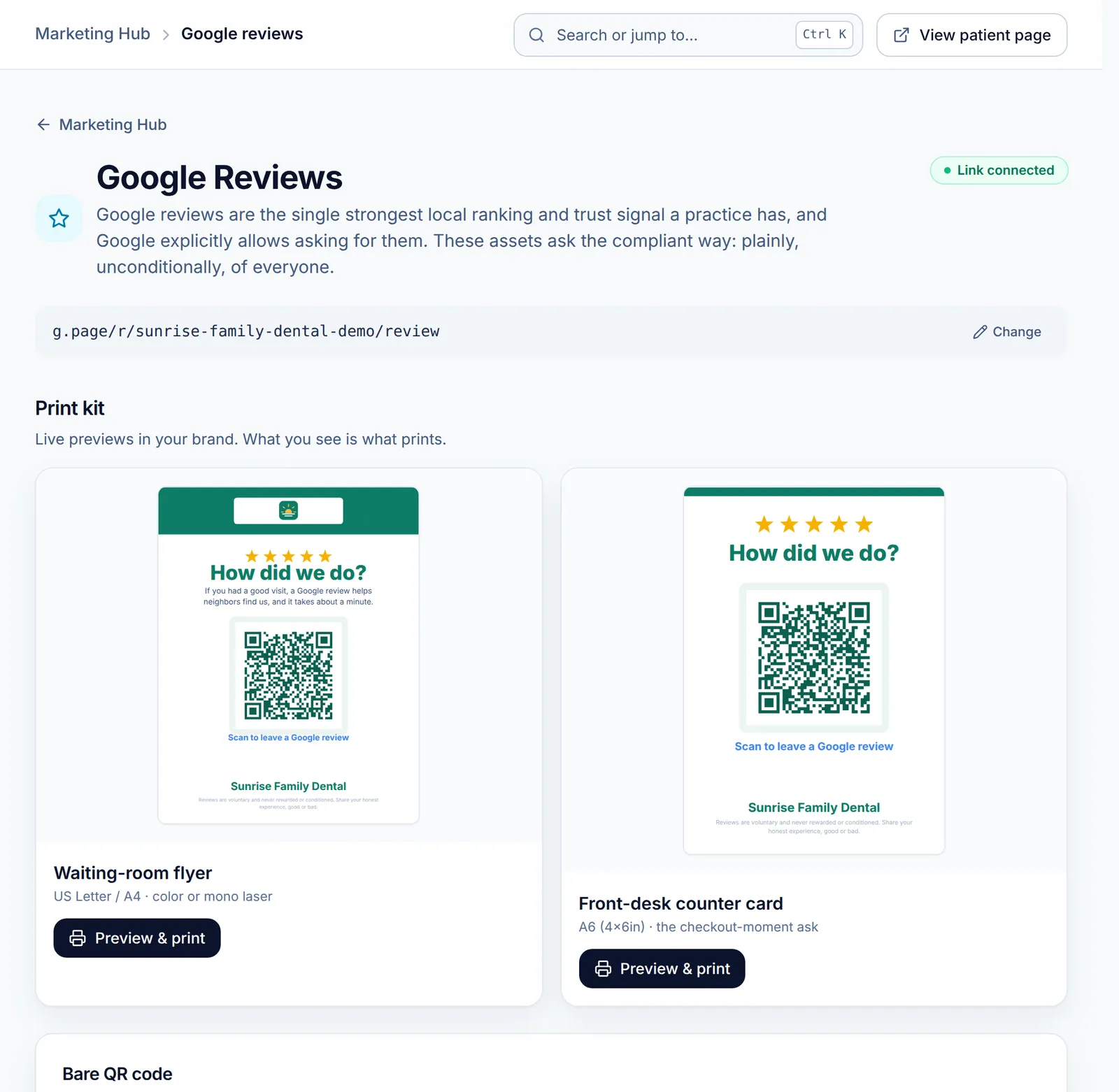
In the Marketing Hub, open Google Reviews. Paste your Google review link and click Save. The page then shows Link connected, and Change edits the link later.
The page fills with a print kit in your brand: a waiting-room flyer and a Front-desk counter card, each with a QR code that opens your review form.
-
Step 2: Print the flyer or the counter card
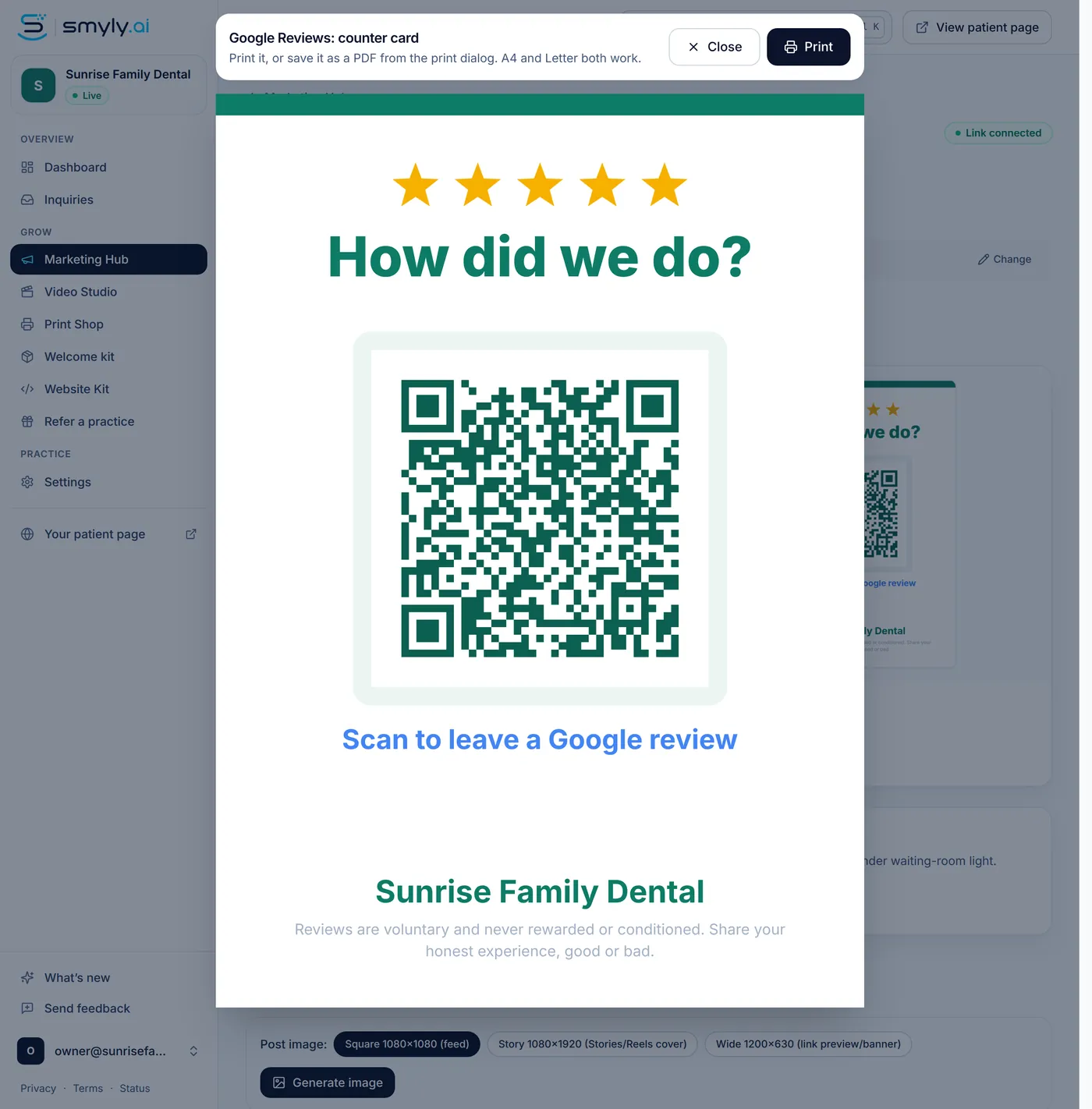
Click Preview & print under either piece to open it full size, then click Print. The flyer fits US Letter or A4; the counter card is A6 (4 by 6 inches) for the checkout moment.
Further down, Bare QR code gives you a PNG and SVG for your own designs, and Social post generates a feed image that asks for reviews without offering anything.
-
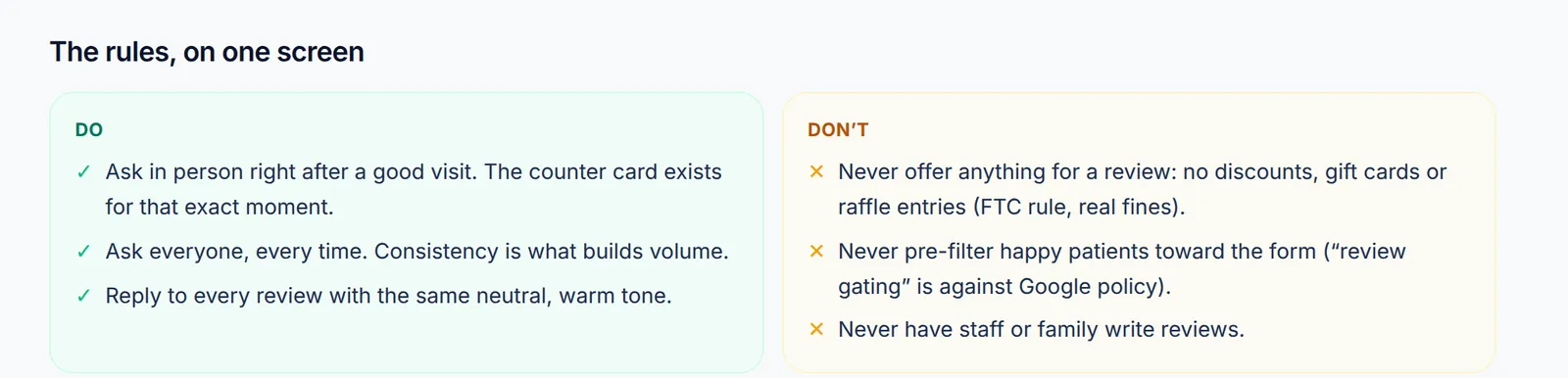
Step 3: Follow the rules on the page
-
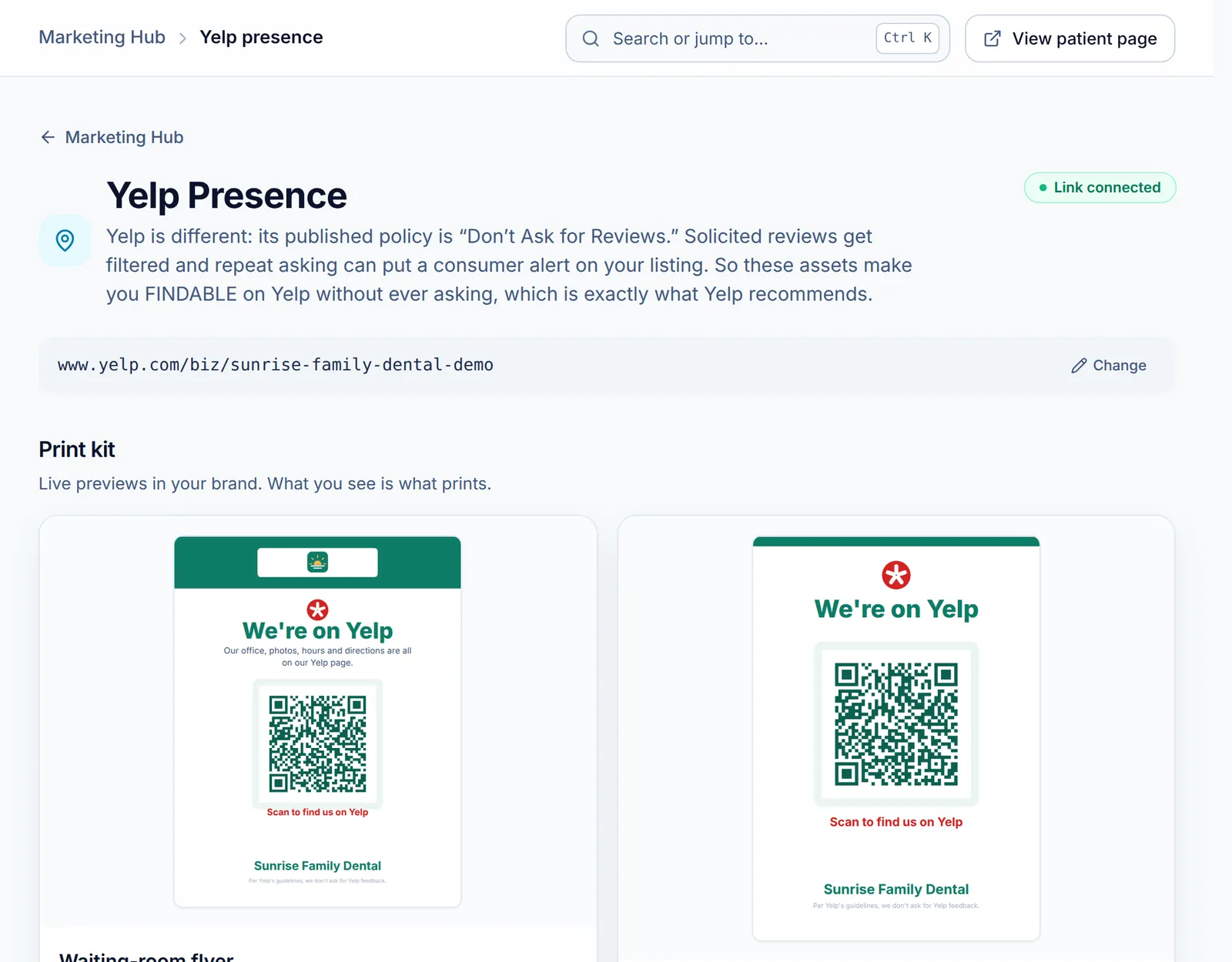
Step 4: For Yelp, be findable and never ask
Good to know
- Reply to every review, good or bad, in the same neutral tone, and never discuss clinical details in a reply. The Playbook in the Marketing Hub covers HIPAA-safe replies.
Related guides
-
Create social posts in your brand
Connect your profiles, print a follow-us flyer, and generate post images that send people to your smile preview page.
4 steps · 5 min · 2 screens Read
-
Brand your team’s email signature
Build a signature with your logo, booking button and legal footer in four steps, paste it into your mail app, and share the design with your team.
5 steps · 6 min · 4 screens Read
-
Order and reprint your welcome kit
See what came in the box, request more printed pieces, or download the print-ready files for your own print vendor.
4 steps · 5 min · 4 screens Read
New to Smyly? See it on your own practice.
Start a 7-day free trial: your branded patient page is live the same day. A card is required at checkout and nothing is charged for 7 days.
Ready to try it?
Everything in this guide is one click from your dashboard. Stuck on a step? Use Send feedback in the app, or email [email protected].
Open your dashboardSomething here doesn’t match what you see? Email [email protected] and we’ll fix the guide.