
Smyly™ guides
Every task, step by step, with the real screens.
Short walkthroughs for the whole team, from signup to your first promo video. Each step shows the exact screen and names the exact button.
15 guides · 61 screens
Start here
New to Smyly? These three, in order, get your first patient preview done.
-
 Step 1, 10 min
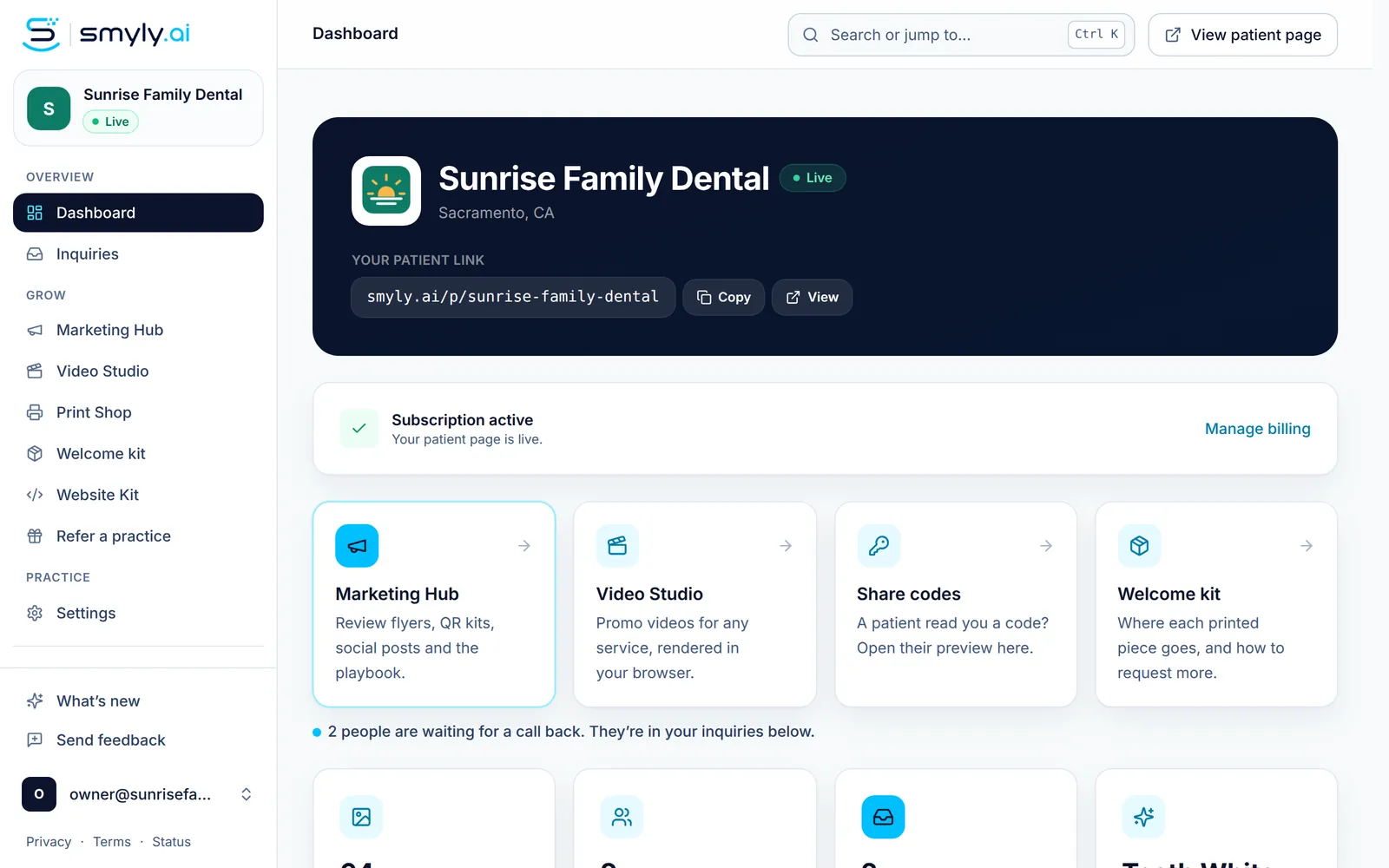
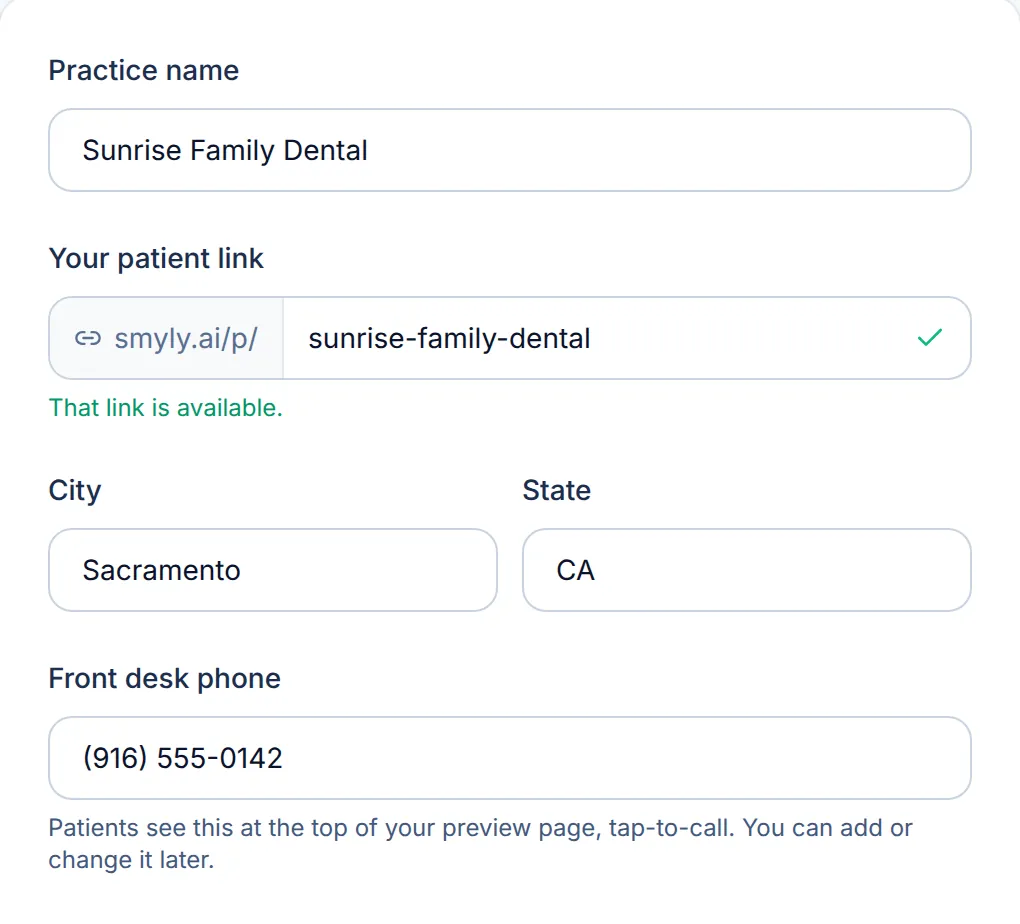
Set up your practice Create your account, claim your patient link, choose your treatment menus and brand color, then start your trial.
Step 1, 10 min
Set up your practice Create your account, claim your patient link, choose your treatment menus and brand color, then start your trial. -
 Step 2, 8 min
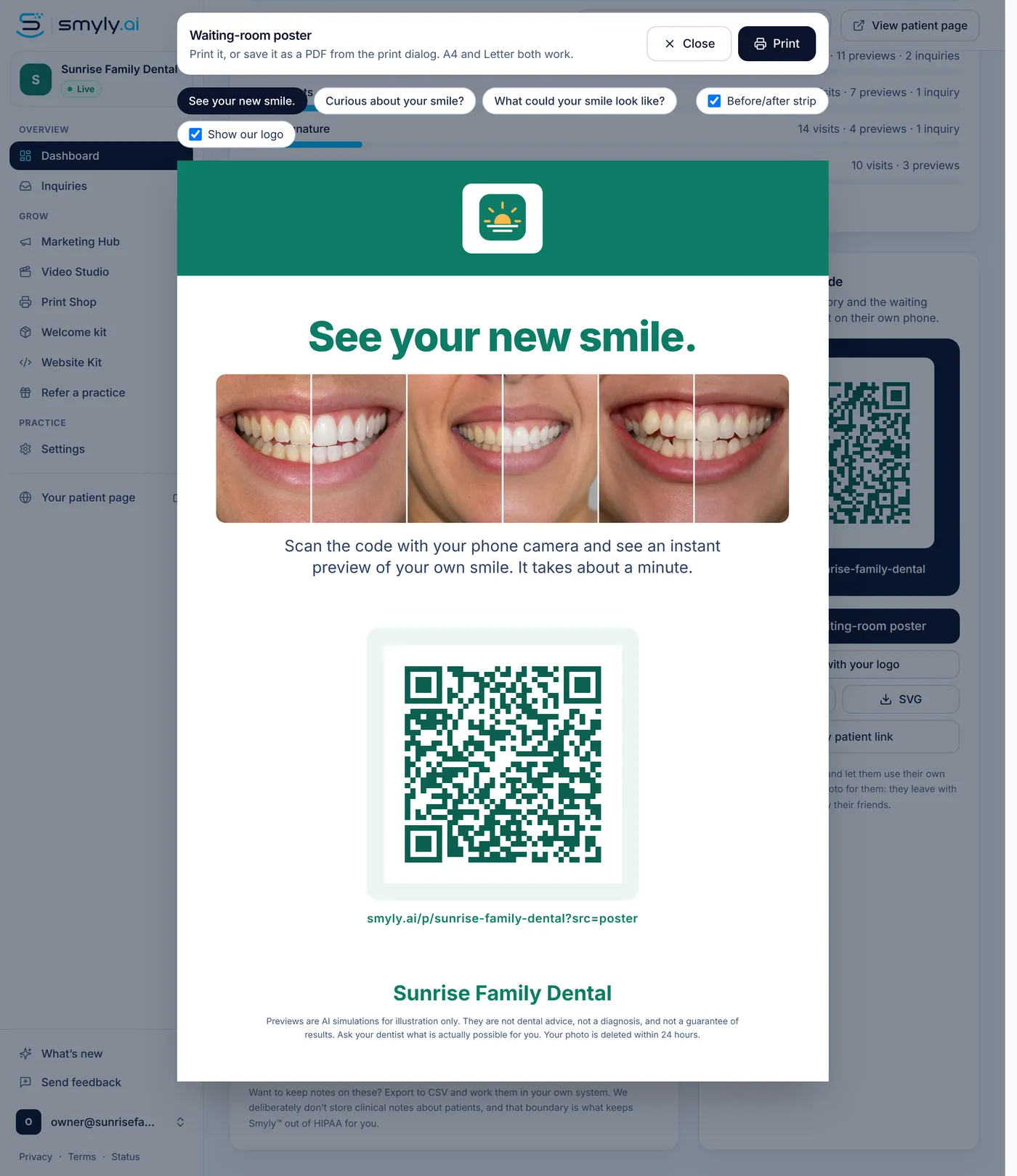
Put your QR code where patients scan it Print the waiting-room poster from your dashboard, hang it at seated eye level, and see which printed pieces bring in visits.
Step 2, 8 min
Put your QR code where patients scan it Print the waiting-room poster from your dashboard, hang it at seated eye level, and see which printed pieces bring in visits. -
 Step 3, 6 min
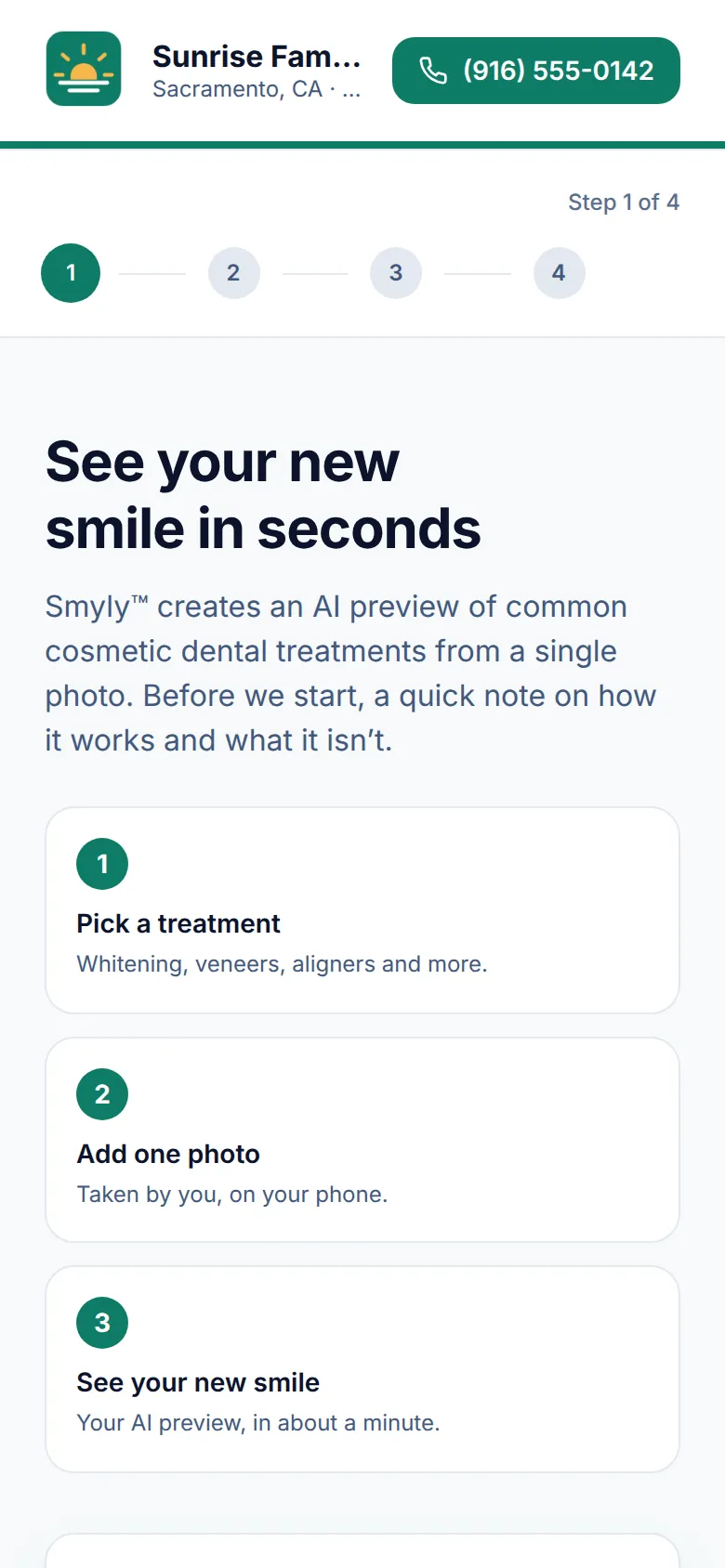
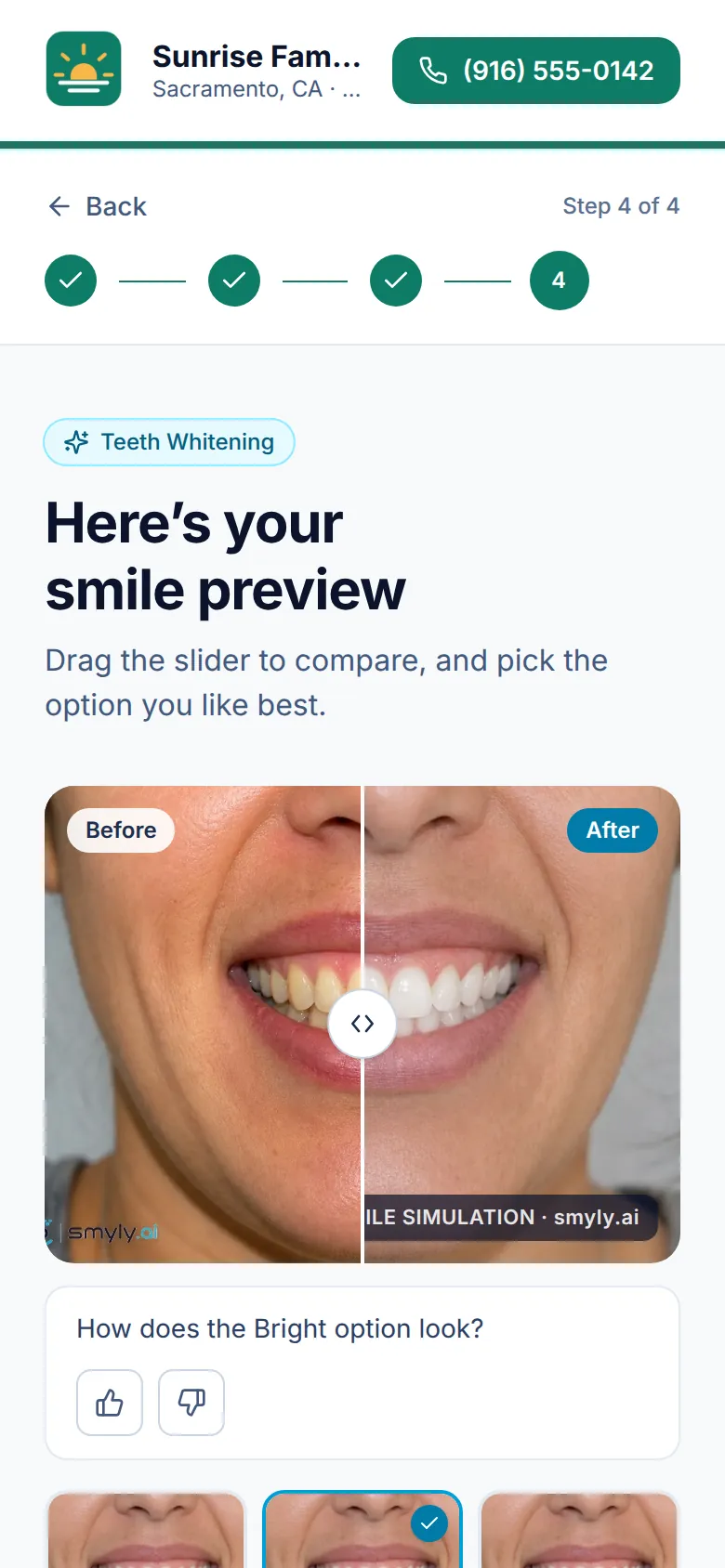
Run your first chairside preview Walk a patient through a preview on their own phone: scan, consent, pick a treatment, take a photo, and share the result with you.
Step 3, 6 min
Run your first chairside preview Walk a patient through a preview on their own phone: scan, consent, pick a treatment, take a photo, and share the result with you.
Getting started
From signup to a live page, and a poster where patients sit.
-
Set up your practice
Create your account, claim your patient link, choose your treatment menus and brand color, then start your trial.
7 steps · 10 min · 6 screens Read
-
Put your QR code where patients scan it
Print the waiting-room poster from your dashboard, hang it at seated eye level, and see which printed pieces bring in visits.
6 steps · 8 min · 5 screens Read
-
Find anything fast
Get around the practice app with the sidebar and Cmd or Ctrl K, catch up on What’s new, and send the team feedback.
4 steps · 3 min · 4 screens Read
Patients and previews
What patients see on their phone, and how their previews and inquiries reach you.
-
Run your first chairside preview
Walk a patient through a preview on their own phone: scan, consent, pick a treatment, take a photo, and share the result with you.
8 steps · 6 min · 8 screens Read
-
Open a patient’s preview with a share code
Type the six-character code a patient reads to you and see their preview on your screen, chairside.
6 steps · 3 min · 4 screens Read
-
Follow up on patient inquiries
Find the patients who asked you to contact them, move each one from New to Booked, and export the list for your own system.
6 steps · 5 min · 4 screens Read
-
Choose which treatments patients can preview
Turn the dental and facial esthetics menus on or off for your patient page, and see what patients get with each.
4 steps · 3 min · 3 screens Read
Marketing Hub
Print, post and embed your preview page, all in your brand.
-
Order and reprint your welcome kit
See what came in the box, request more printed pieces, or download the print-ready files for your own print vendor.
4 steps · 5 min · 4 screens Read
-
Ask for Google reviews the compliant way
Print Google review flyers and counter cards from your own review link, and use Yelp assets that make you findable without asking.
4 steps · 6 min · 4 screens Read
-
Create social posts in your brand
Connect your profiles, print a follow-us flyer, and generate post images that send people to your smile preview page.
4 steps · 5 min · 2 screens Read
-
Make a promo video in Video Studio
Pick a service and a video type, set the look, edit the slides, and render a real MP4 in your browser.
4 steps · 8 min · 3 screens Read
-
Brand your team’s email signature
Build a signature with your logo, booking button and legal footer in four steps, paste it into your mail app, and share the design with your team.
5 steps · 6 min · 4 screens Read
-
Add Smyly to your website
Paste one of the Website Kit embeds, from the full try-on widget to a single button, so site visitors can preview their own smile.
4 steps · 7 min · 3 screens Read
Account and team
Teammates, roles, billing and the emails Smyly sends you.
-
Add your front desk and associates
Give teammates their own sign-in, choose Front desk or Admin, and manage invites and seats.
5 steps · 4 min · 3 screens Read
-
Manage billing and notifications
Update your card or download invoices through Stripe, choose your email alerts, and move from the trial to your subscription.
5 steps · 4 min · 4 screens Read
No guide matches that yet.
Try a simpler word, like poster, code or team. Or email [email protected] and a person will answer.
See it on your own practice.
Start a 7-day free trial and your branded patient page is live the same day. A card is required at checkout; nothing is charged for 7 days.
Everything here is one click away.
Open your dashboard and press Cmd K or Ctrl K to jump straight to any tool in these guides.
Open your dashboardStill stuck?
A person on the Smyly team answers every message. Email [email protected], or use Send feedback inside the app.
New in the product: What’s new