
Screens shown with a fictional demo practice and AI-generated model photos.
-
Step 1: Know the layout
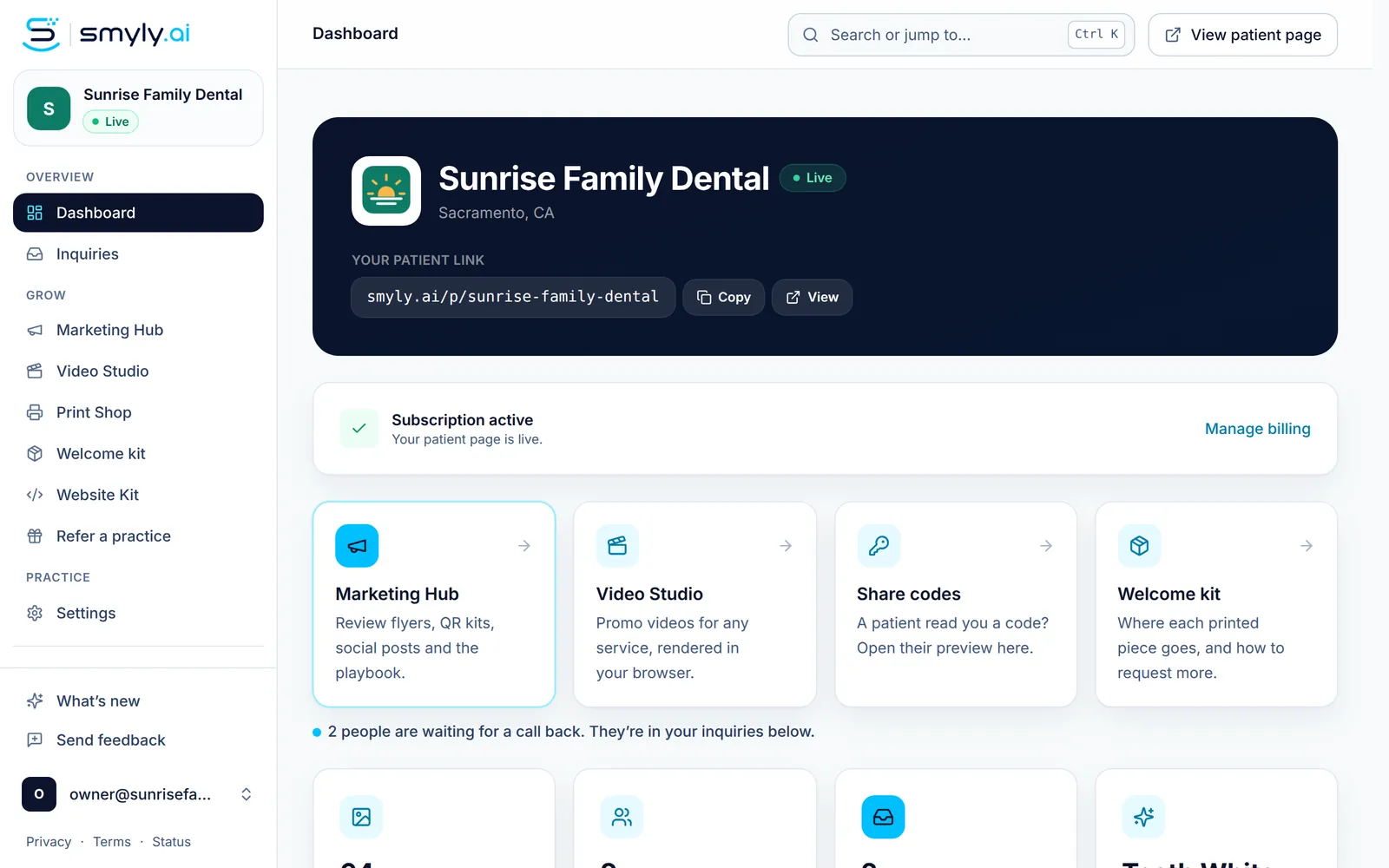
Every signed-in page shares one frame. The sidebar on the left holds Dashboard and Inquiries, the Marketing Hub tools, and Settings. The top bar has Search or jump to and View patient page, which opens your live page in a new tab.
At the bottom of the sidebar are What’s new, Send feedback and your account menu. On a phone, tap the menu button at the top left to open the same sidebar.
-
Step 2: Jump anywhere with Cmd or Ctrl K
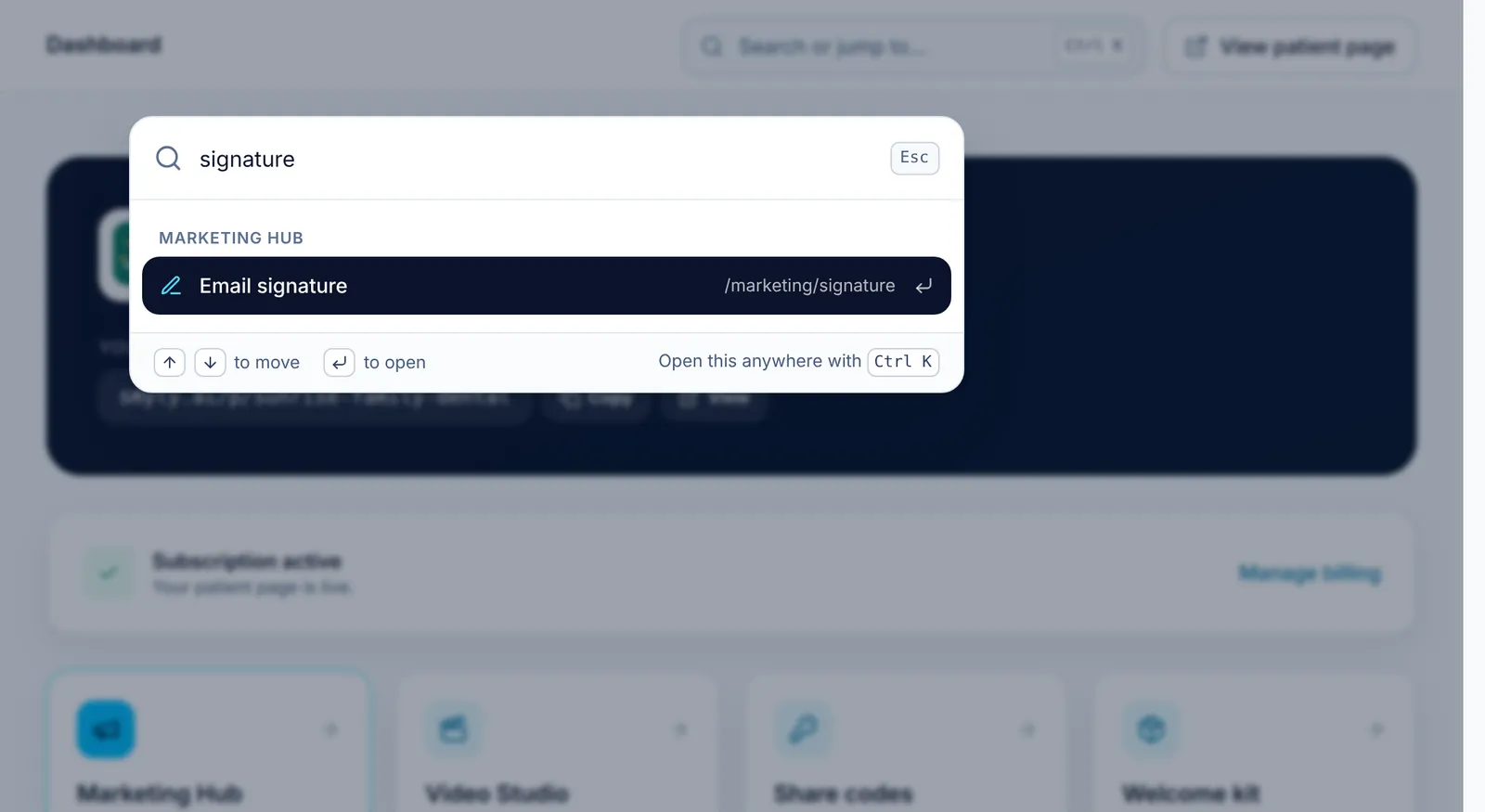
Press ⌘ K on a Mac or Ctrl K on Windows, from any signed-in page, and start typing in the search box. It finds pages, Marketing Hub tools, Settings sections such as Team and Billing, your patient page, and actions like Sign out.
Use the arrow keys to move and Enter to open the top result. Esc closes it. If nothing matches, Tell us what you need opens the feedback form.
-
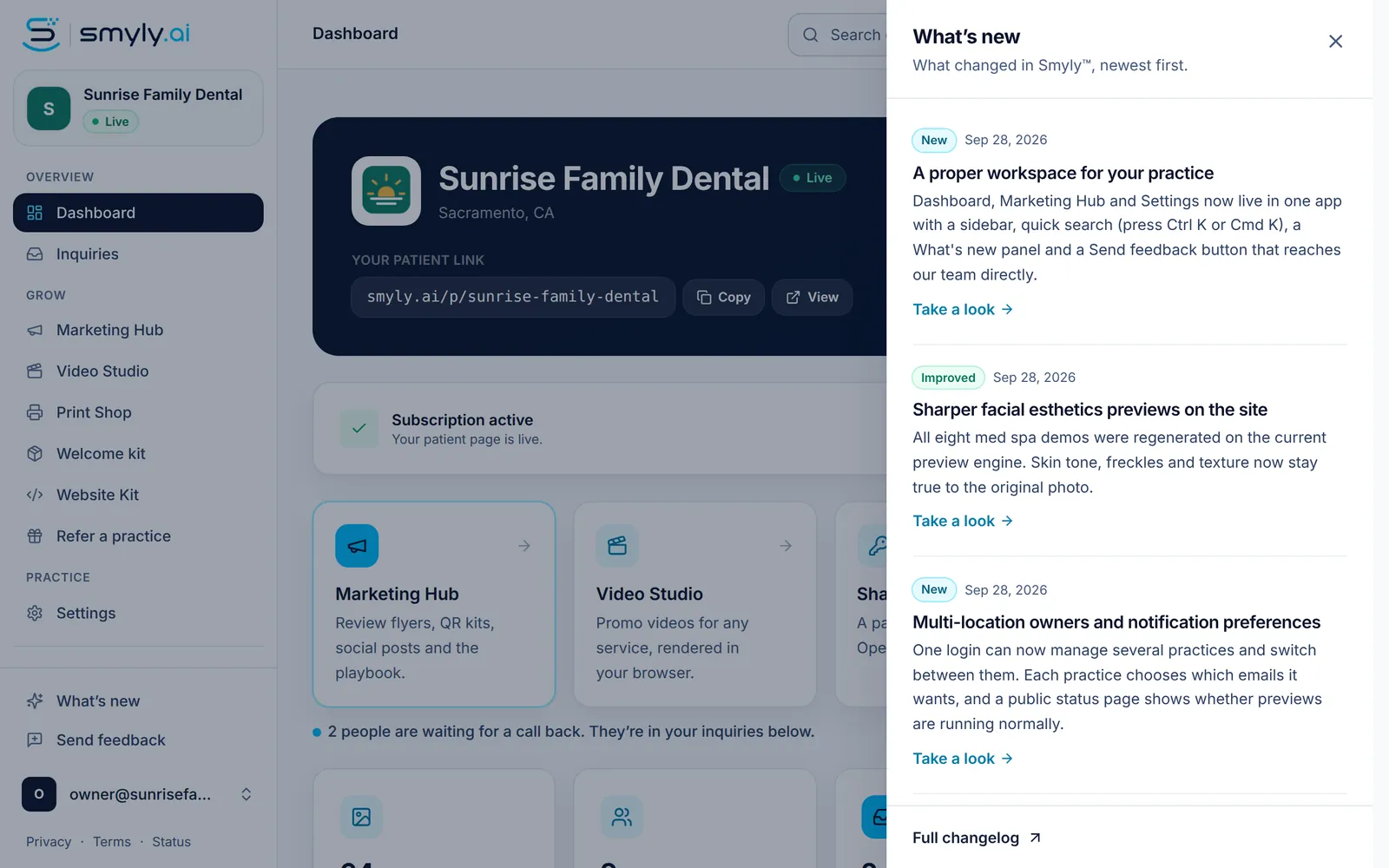
Step 3: See what changed
-
Step 4: Send the team feedback
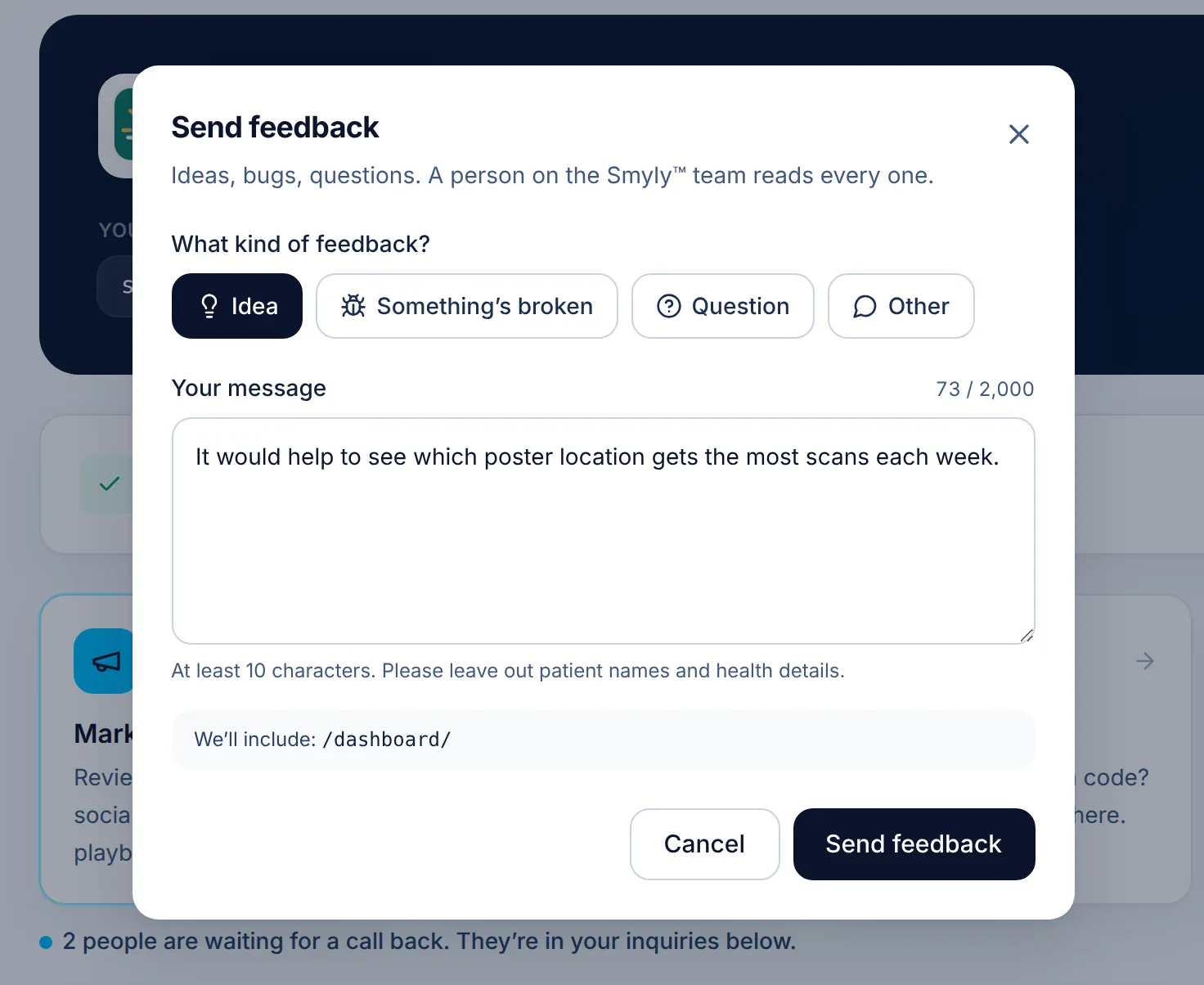
Click Send feedback, answer What kind of feedback? (Idea, Something’s broken, Question or Other), and write at least 10 characters in Your message. The page you were on is included so the team can see what you saw. Click Send feedback and a person on the Smyly team reads it.
Please leave out patient names and health details.
Related guides
-
Manage billing and notifications
Update your card or download invoices through Stripe, choose your email alerts, and move from the trial to your subscription.
5 steps · 4 min · 4 screens Read
-
Set up your practice
Create your account, claim your patient link, choose your treatment menus and brand color, then start your trial.
7 steps · 10 min · 6 screens Read
-
Add your front desk and associates
Give teammates their own sign-in, choose Front desk or Admin, and manage invites and seats.
5 steps · 4 min · 3 screens Read
New to Smyly? See it on your own practice.
Start a 7-day free trial: your branded patient page is live the same day. A card is required at checkout and nothing is charged for 7 days.
Ready to try it?
Everything in this guide is one click from your dashboard. Stuck on a step? Use Send feedback in the app, or email [email protected].
Open your dashboardSomething here doesn’t match what you see? Email [email protected] and we’ll fix the guide.