
What you’ll need
- Owner or admin access. During the trial, the menus you picked at signup apply.
Screens shown with a fictional demo practice and AI-generated model photos.
-
Step 1: Open the treatment menus in Settings
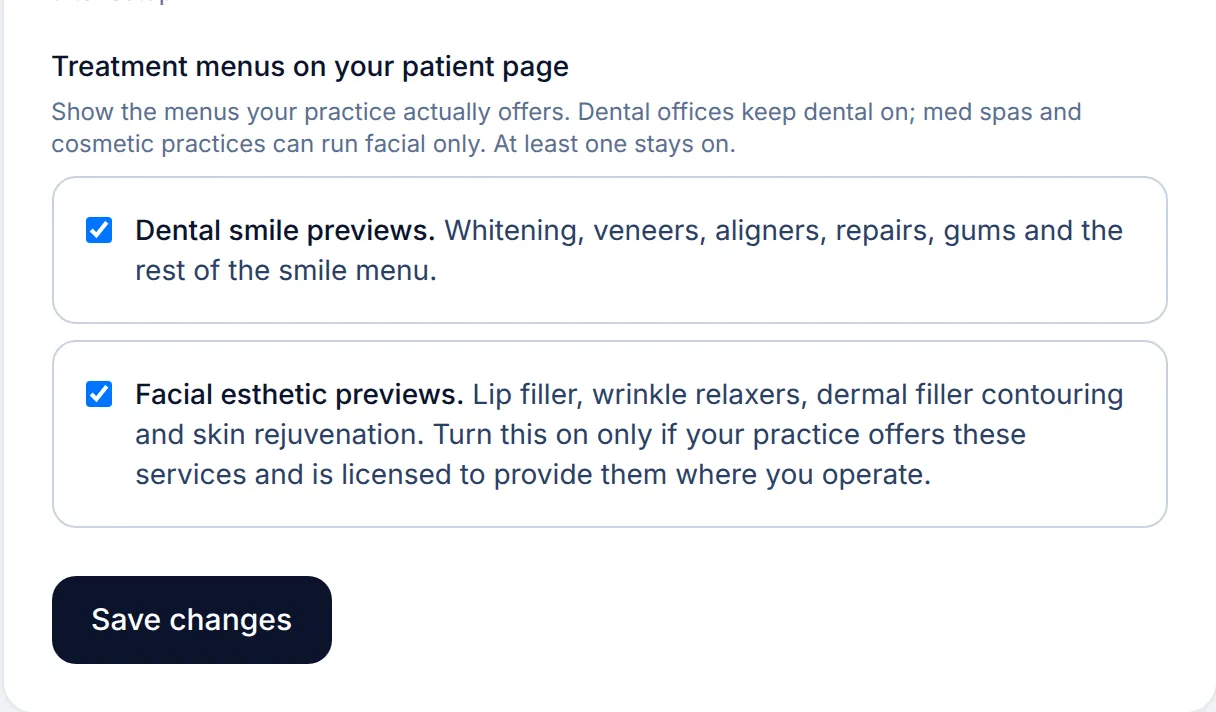
In Settings, scroll to Treatment menus on your patient page. Tick Dental smile previews for whitening, veneers, aligners, repairs and gums. Tick Facial esthetic previews for lip filler, wrinkle relaxers, dermal filler contouring and skin, only if your practice offers those services and is licensed to provide them where you operate.
At least one stays on, so the last ticked box cannot be cleared. Click Save changes.
-
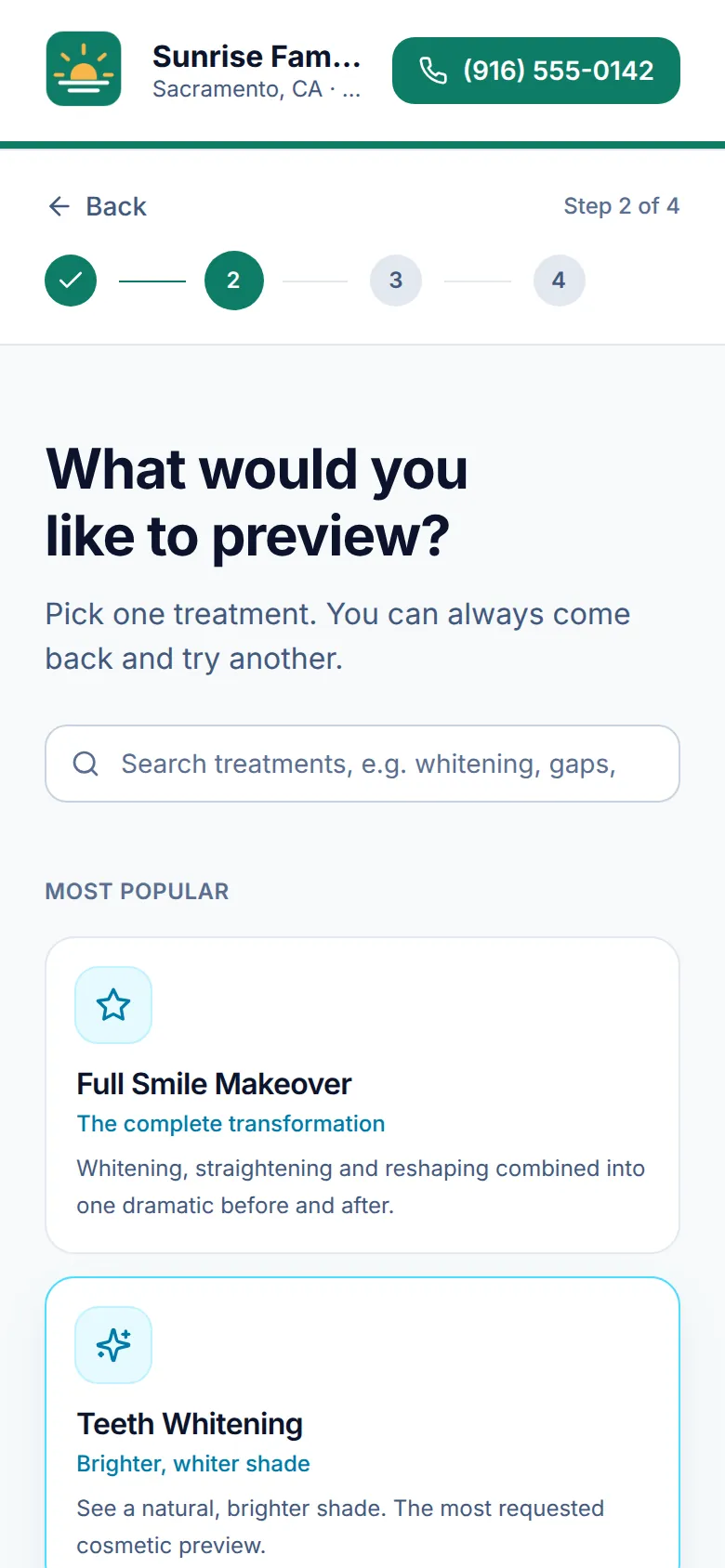
Step 2: What patients see with the dental menu
-
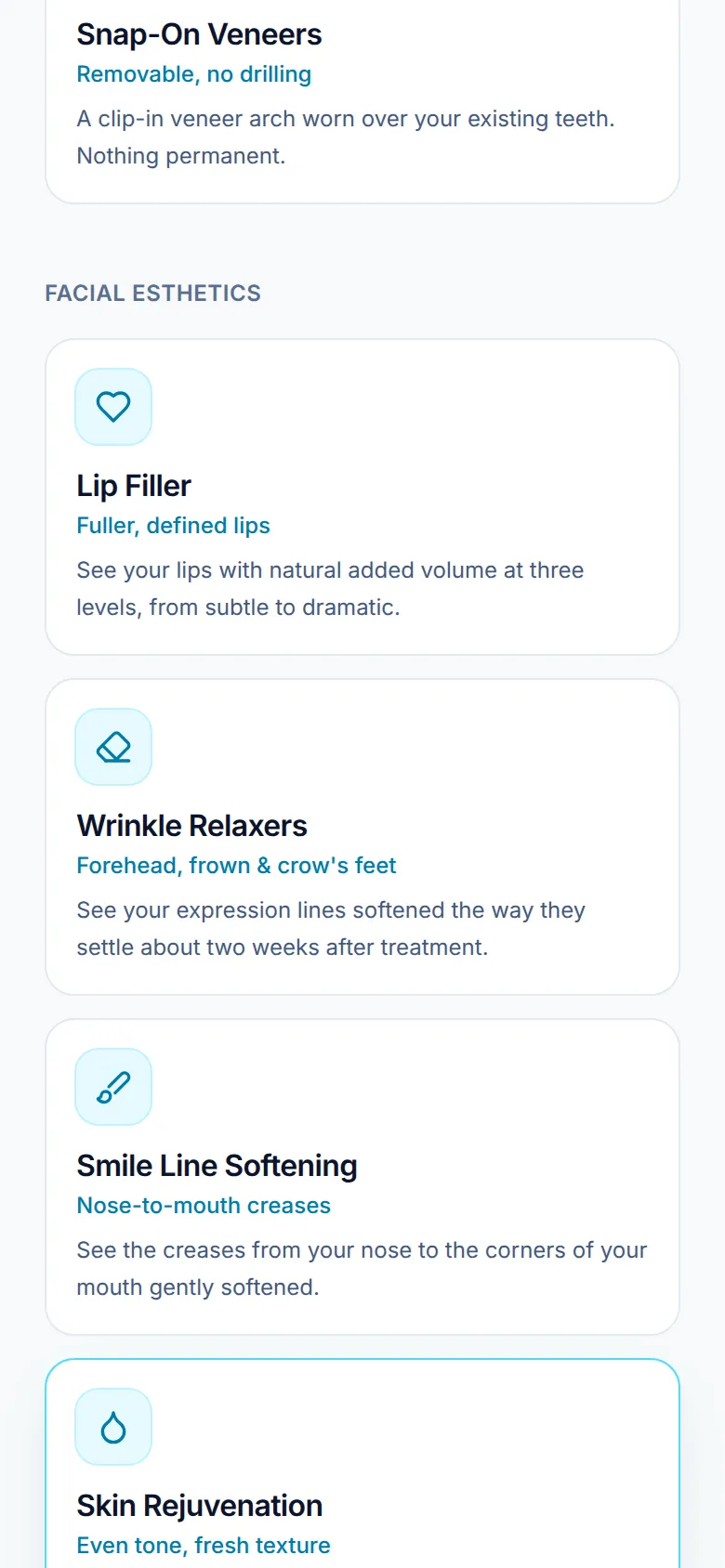
Step 3: What patients see with facial esthetics on
-
Step 4: Check your own patient page
Click View patient page in the top bar (on a phone, Your patient page in the menu). Your page opens in a new tab exactly as patients see it: tick the two boxes, tap Continue and look through the treatment list. A menu change applies the next time anyone opens your page, including QR codes already printed.
Good to know
- Front desk teammates cannot change menus. Settings is for owners and admins.
- You picked your first menus on the signup form, under What should patients be able to preview?
Related guides
-
Run your first chairside preview
Walk a patient through a preview on their own phone: scan, consent, pick a treatment, take a photo, and share the result with you.
8 steps · 6 min · 8 screens Read
-
Set up your practice
Create your account, claim your patient link, choose your treatment menus and brand color, then start your trial.
7 steps · 10 min · 6 screens Read
-
Make a promo video in Video Studio
Pick a service and a video type, set the look, edit the slides, and render a real MP4 in your browser.
4 steps · 8 min · 3 screens Read
New to Smyly? See it on your own practice.
Start a 7-day free trial: your branded patient page is live the same day. A card is required at checkout and nothing is charged for 7 days.
Ready to try it?
Everything in this guide is one click from your dashboard. Stuck on a step? Use Send feedback in the app, or email [email protected].
Open your dashboardSomething here doesn’t match what you see? Email [email protected] and we’ll fix the guide.